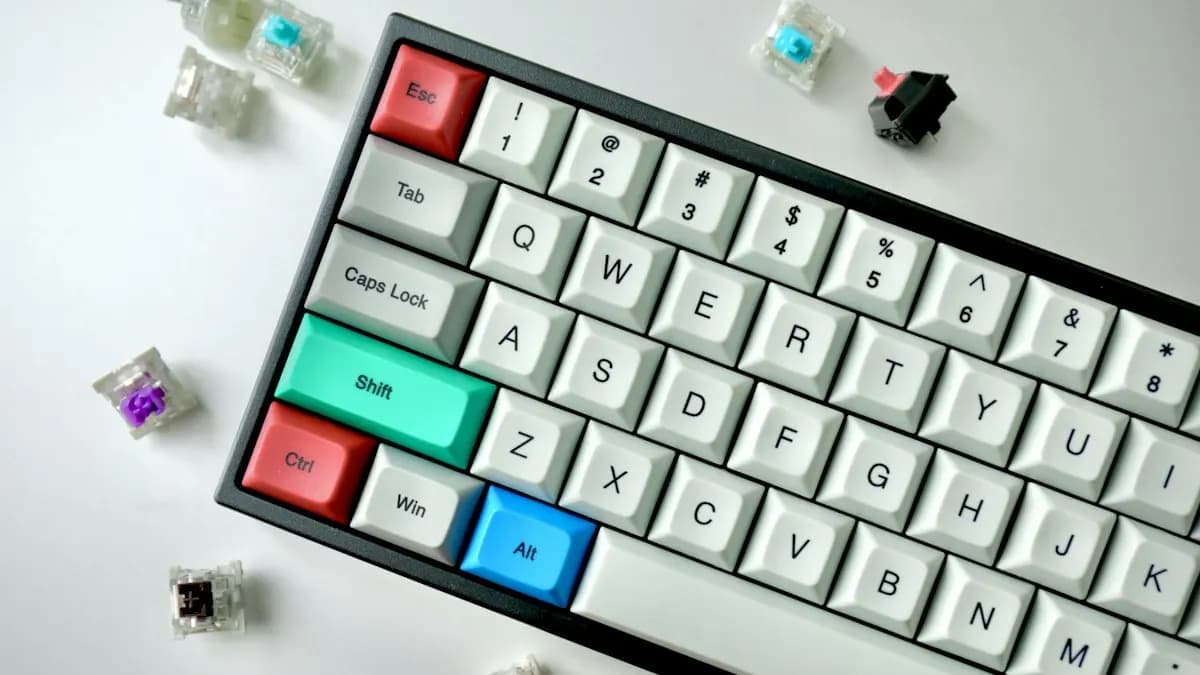
Where to Find the Full List of Photoshop Shortcut Keys
Photoshop shows every shortcut inside the app. Go to Edit > Keyboard Shortcuts, or press Alt + Shift + Ctrl + K on Windows (Option + Shift + Command + K on Mac)[1]. In the dialog, the Shortcuts For menu lets you switch between Application Menus, Panel Menus and Tools. You can also change a shortcut there.
Photoshop Tool Shortcut Keys
These single keys come from Adobe's default shortcut list[2]. Press the same key with Shift to cycle through the tools that share it.
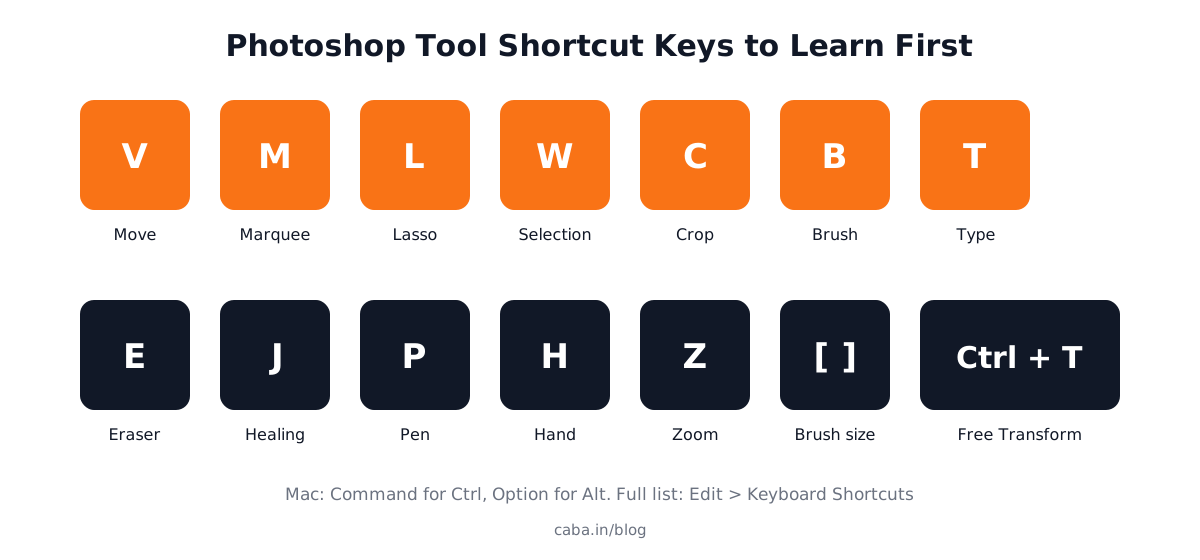
| Key | Tool | Key | Tool |
|---|---|---|---|
| V | Move, Artboard | M | Rectangular and Elliptical Marquee |
| L | Lasso, Polygonal and Magnetic Lasso | W | Object Selection, Quick Selection, Magic Wand |
| C | Crop, Perspective Crop | I | Eyedropper |
| J | Spot Healing, Healing Brush | B | Brush, Pencil, Mixer Brush |
| S | Clone Stamp | E | Eraser |
| G | Gradient, Paint Bucket | O | Dodge, Burn, Sponge |
| P | Pen, Curvature Pen | T | Type tools |
| A | Path and Direct Selection | U | Rectangle, Ellipse and other shapes |
| H | Hand (or hold Spacebar) | Z | Zoom |
| D | Default black and white colours | X | Swap foreground and background |
| Q | Quick Mask on or off | R | Rotate View |
Everyday Photoshop Shortcuts for Windows and Mac
| Action | Windows | Mac |
|---|---|---|
| Free Transform | Ctrl + T | Command + T |
| Undo | Ctrl + Z | Command + Z |
| Deselect | Ctrl + D | Command + D |
| New layer via copy | Ctrl + J | Command + J |
| New layer via cut | Shift + Ctrl + J | Shift + Command + J |
| Smaller or bigger brush | [ or ] | [ or ] |
| Softer or harder brush | Shift + [ or Shift + ] | Shift + [ or Shift + ] |
| Fill | Shift + F5 | Shift + F5 |
| Inverse selection | Shift + F7 | Shift + F7 |
| Show or hide Layers panel | F7 | F7 |
| Fit image in window | Double-click the Hand tool | Double-click the Hand tool |
| Add to a selection | Shift + drag with a selection tool | Shift + drag with a selection tool |
On a Mac, function keys may need the Fn key held down, because macOS uses them for brightness and volume[2]. If undo is not going back far enough, read Photoshop undo limit and history settings.
Why Studios Expect You to Know Shortcuts
In an agency, a social post may need five sizes before lunch. A designer who reaches for the menu for every step is slower. Slow designers get fewer projects. In interviews, many art directors give a short practical test. Your hands on the keyboard tell them more than your CV.

Other software works the same way. Editors learn Premiere Pro shortcut keys and motion designers learn After Effects shortcuts.
Practice Projects to Make the Shortcuts Stick
- Product photo clean-up: remove dust and marks, straighten and crop, then export for an online store.
- Social post in three sizes: one design resized to square, 4:5 and 9:16.
- Photo composite: cut out a person, place them on a new background and match the light.
Worked example, product photo clean-up: press C and crop the photo straight. Press J for Spot Healing and tap away dust, using [ and ] to size the brush. Press W, click the product to select it and press Ctrl + J to copy it to a new layer. Press Ctrl + T to scale it, then add a new layer under it, press D and press Ctrl + Backspace to fill it with white. You touched the menus only to export. Online stores need this kind of image every day; see graphic design for ecommerce.
AI and Agentic AI in Photoshop With a Human Check
Photoshop now has Generative Fill for removing or adding objects; our Photoshop Generative Fill guide covers it. Adobe's AI Assistant, in public beta in Photoshop since June 2026, can carry out several editing steps from one typed request[3].
Shortcuts still matter, because you check and fix every AI result by hand: a wrong edge, a changed product colour or an odd hand. What the human decides is the final look and whether it is true to the real product. CABA's courses now teach AI and agentic AI workflows inside the curriculum, alongside the shortcuts that make hand fixes fast.
Why 1-to-1 Training Helps Here
Shortcuts are learned by hand, not by reading. In 1-to-1 training a trainer watches you work, notices when you reach for the menu and makes you repeat the key until it is habit. That feedback is hard to get from videos alone.
Our graphic design course in Delhi teaches Photoshop, Illustrator, InDesign, Affinity by Canva and AI tools through projects, with shortcut drills built into class. See the modules on the graphic design course page or read the graphic design course syllabus. The course comes with a 100% Job Guarantee; the terms are on the job guarantee page.
Frequently Asked Questions
What are the most used Photoshop shortcut keys?
V for Move, M for Marquee, L for Lasso, W for selection tools, B for Brush, T for Type, Ctrl + T for Free Transform, Ctrl + J for a new layer via copy, Ctrl + D to deselect and [ ] for brush size.
How do I see all shortcut keys in Photoshop?
Go to Edit > Keyboard Shortcuts or press Alt + Shift + Ctrl + K on Windows (Option + Shift + Command + K on Mac).
Are Photoshop shortcuts the same on Mac?
Mostly. Use Command instead of Ctrl and Option instead of Alt. Function keys may need the Fn key.
Can I change Photoshop shortcut keys?
Yes. In Edit > Keyboard Shortcuts you can assign a new key to a command or tool and save it as your own set.
How do I change brush size with the keyboard?
Press [ to make the brush smaller and ] to make it bigger. Shift + [ and Shift + ] change the hardness.
References
- View keyboard shortcuts in Photoshop (updated 8 September 2026)- Adobe Help Center
- Keyboard shortcuts in Adobe Photoshop (PDF)- Adobe Help Center
- Adobe Unveils Major Expansion of Creative Agent Across Firefly and Creative Cloud Apps (18 June 2026)- Adobe Newsroom