Why Generative Fill Matters in a Design Job
Clients now expect fast photo fixes: a product shot with the background extended for a banner, a wire removed from a shop photo, an empty table filled for a menu card. Studios in Delhi expect a new designer to do this in minutes, not hours. One Delhi job post this week asked a fresher to make product mockups and AI product images with Photoshop, Illustrator, ChatGPT and Gemini[4].
The catch is quality. A careless fill looks fine on a phone and falls apart on a printed banner. Knowing where the tool is weak is what separates a trained designer from someone pressing a button.
How to Use Photoshop Generative Fill, Step by Step
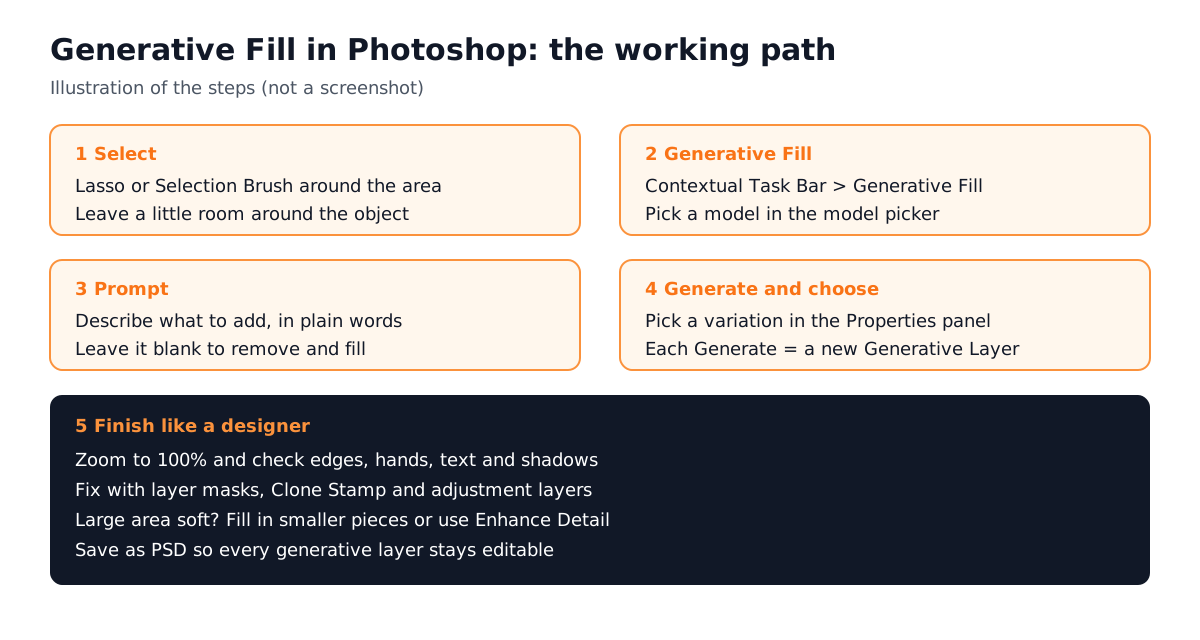
- 1Open the image
Choose File > Open and pick your photo[1].
- 2Select the area
Use a selection tool such as the Lasso or the Selection Brush to mark what you want to change[1]. Leave a little room around the object so the new pixels blend.
- 3Click Generative Fill
It appears in the Contextual Task Bar once you have a selection[1].
- 4Pick a model
Use the model picker in the Contextual Task Bar. Adobe lists its Firefly models (Firefly Fill & Expand, Firefly Image 5, Firefly Image 1) and partner models such as FLUX and Gemini[1].
- 5Write a prompt or leave it blank
Describe what to add in plain words, or leave the box empty to let Photoshop fill the selection from the surrounding pixels[1].
- 6
Photoshop Generative Fill Prompts That Work
Short, concrete prompts work best. Describe the thing, not the whole picture. Photoshop already sees the rest of the image.
| Job | Selection | Prompt |
|---|---|---|
| Remove a wire or person | Tight lasso around it | Leave blank |
| Extend a background for a banner | Empty canvas area added with Crop | Leave blank, or "brick wall continues" |
| Add a prop to a product shot | Area on the table where it should sit | "small green plant in a white pot" |
| Change a sky | Sky only | "clear evening sky, soft orange light" |
| Fill an empty shelf | The empty shelf space | "neatly stacked sweet boxes" |
Generative Fill Not Showing or Not Working? Check These
- No selection: the Generative Fill button appears in the Contextual Task Bar after you select an area[1].
- No internet: generative AI features in Photoshop need an internet connection[2].
- Plan or region: they are available to Photoshop subscribers and trial users wherever Adobe provides services but not to users in China[2].
- Credits: each generation uses generative credits. You can see your balance in the Account menu in Photoshop[2][3].
- Old version: update Photoshop from the Creative Cloud app. Adobe also retires older partner models from time to time, so a model you used last month may disappear from the picker[1].
- Soft result: Adobe's FAQ says the Firefly model returns output of 1024 x 1024 pixels[2], so a very large selection can look soft. Fill smaller areas or try Enhance Detail.
Finishing Steps Studios Expect
- 1Zoom to 100%
Check edges, hands, faces, text and repeating patterns. AI often adds extra fingers or melted letters.
- 2Fix with masks
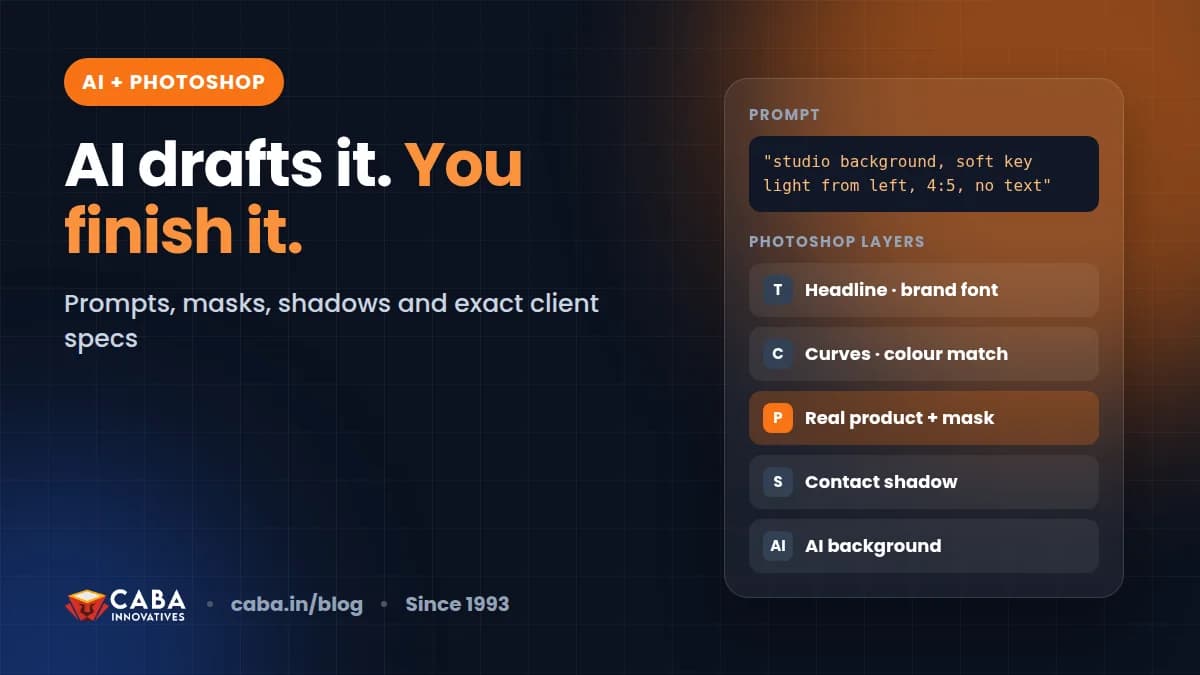
Paint on the Generative Layer's mask to blend edges. Use Clone Stamp or Spot Healing for small faults.
- 3Match light and colour
Add a Curves or Hue/Saturation adjustment layer clipped to the new area so it matches the photo.
- 4Save as PSD
Keep every Generative Layer editable[2]. Export JPG or PNG only for delivery.

If you undo a lot while trying variations, raise your History States first; see Photoshop undo limit and history settings. For writing prompts across AI tools, read AI Photoshop prompts and finishing steps.
Three Portfolio Projects With Generative Fill
- Product banner set: one square product photo extended into a 1200 x 628 web banner, a 1080 x 1920 story and a wide shop-front print, each finished by hand.
- Clean-up before and after: five real-estate or shop photos with wires, clutter and signs removed, shown side by side.
- Menu card: food photos with backgrounds extended and props added, laid out in InDesign or Illustrator.
Worked example (hypothetical): a sweet shop owner sends a phone photo of one gift box on a cluttered counter. You remove the clutter with a blank-prompt fill, extend the canvas for a Diwali banner, add "marigold flowers around the box" in a small selection, fix the edges with a mask and match the colour with Curves. Twenty minutes, one banner and a matching Instagram post. For more on design work for shops, see graphic design for small business owners.
AI and Agentic AI in Photoshop Work Today
Generative Fill is one tool. In June 2026 Adobe opened an AI assistant (public beta) in Photoshop that carries out described changes across a composite, such as replacing a background, resizing assets for different platforms and tidying layers[5]. Designers now use both, with chat tools like ChatGPT or Gemini for ideas.
What the human still decides: the idea, what stays real in a product photo, whether a result is honest to show a customer and whether it will print well. CABA's courses now teach AI and agentic AI workflows inside the curriculum, with the designer checking every pixel before delivery. For the wider picture, read graphic design with AI.
Why 1-to-1 Training Helps With Generative Fill
Generative Fill is easy to start and hard to finish well. In a 1-to-1 class the trainer looks at your result at 100% and shows you the edge, shadow or colour you missed, on your own project. That habit of checking is what clients pay for.
Our graphic design course in Delhi covers Photoshop, Illustrator, InDesign, Canva and AI tools, with real client-style briefs for your portfolio. The course comes with a 100% Job Guarantee; read the job guarantee terms. See the full plan on the graphic design course page.
Frequently Asked Questions
How do I use Generative Fill in Photoshop?
Open an image, select an area with a selection tool, click Generative Fill in the Contextual Task Bar, pick a model, type a short prompt or leave it blank and click Generate. Choose a variation in the Properties panel.
Why is Generative Fill not showing in Photoshop?
Usually there is no active selection, Photoshop is offline or out of date, or the account has no generative credits left. The features are not available to users in China.
Does Photoshop Generative Fill need internet?
Yes. Adobe says generative AI features in Photoshop need an internet connection.
Why does Generative Fill look blurry?
Large selections can look soft because the Firefly model returns 1024 x 1024 pixel output. Fill smaller areas, generate in pieces or try Enhance Detail.
How do I keep Generative Fill edits editable?
Each Generate creates a Generative Layer. Save the file as PSD to keep those layers and their variations.
References
- Edit images with Generative Fill (updated 15 September 2026)- Adobe Help Center
- Generative AI features in Photoshop on Desktop FAQ (updated 23 February 2026)- Adobe Help Center
- Generative AI features overview (updated 20 May 2026)- Adobe Help Center
- Graphic Design Jobs in Delhi (listings viewed 22 October 2026)- Internshala
- Adobe Unveils Major Expansion of Creative Agent Across Firefly and Creative Cloud Apps (18 June 2026)- Adobe Newsroom