Why Do After Effects Shortcuts Matter in a Real Job?
In an agency or a social media team, one motion designer often handles several reels a week. Each reel has dozens of layers and hundreds of keyframes. If you open a menu every time you want to see a layer's Position, you lose hours a week. Studios notice this in the first test task.
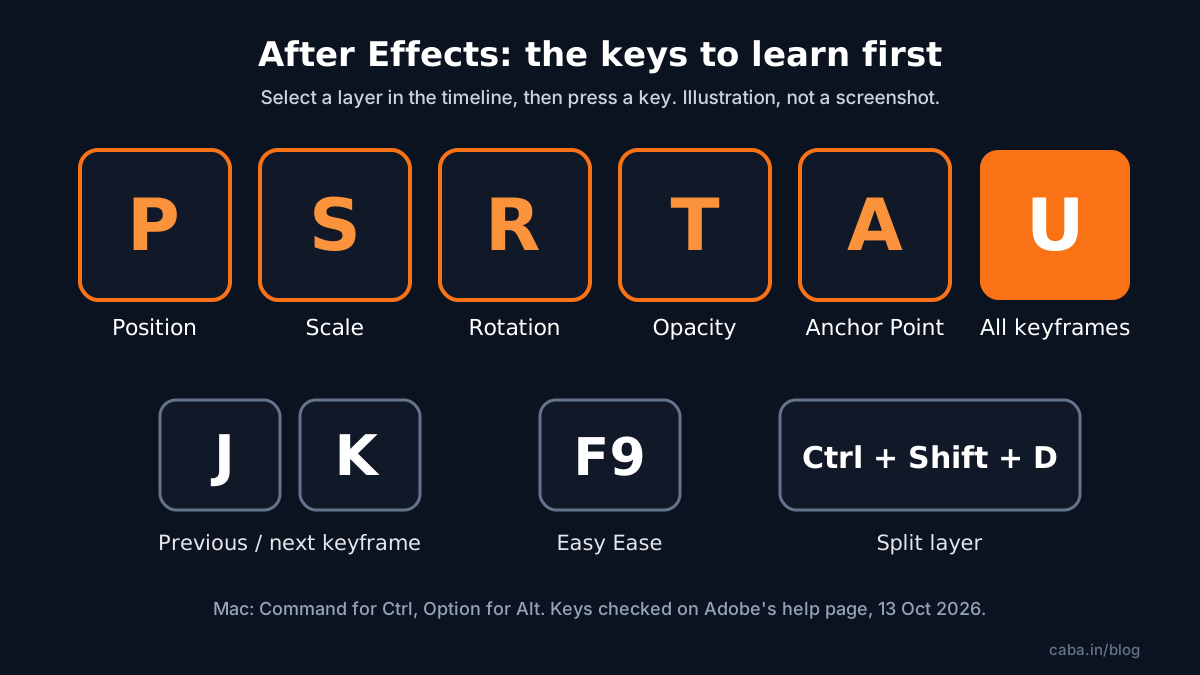
Shortcuts are also a sign of training. When a senior watches you press U to see your keyframes and F9 to smooth them, they know you have done this before. All keys below were checked on Adobe's After Effects shortcuts page on 13 October 2026[1]. Windows keys are shown. On a Mac, use Command for Ctrl and Option for Alt.
Layer Property Shortcuts: The 7 Keys to Learn First
| Key | Shows only | When you use it |
|---|---|---|
| P | Position | Moving text or logos in and out of frame |
| S | Scale | Pop-in and zoom animations |
| R | Rotation (and Orientation) | Spinning icons and logo reveals |
| T | Opacity | Fades in and out |
| A | Anchor Point | Fixing the point a layer rotates or scales around |
| U | Properties with keyframes | Seeing everything you have animated on a layer |
| UU (press twice) | Modified properties | Finding what you changed from default |
Timeline Shortcuts: Trim, Split and Move Layers
| Action | Windows | Mac |
|---|---|---|
| Go to previous or next keyframe or marker | J or K | J or K |
| Set work area start or end to current time | B or N | B or N |
| Move layer so its In or Out point is at current time | [ or ] | [ or ] |
| Trim layer In or Out point to current time | Alt + [ or Alt + ] | Option + [ or Option + ] |
| Split layer at current time | Ctrl + Shift + D | Command + Shift + D |
| Duplicate layer | Ctrl + D | Command + D |
| Go to start of composition | Home | Home |
| Trim composition to work area | Ctrl + Shift + X | Command + Shift + X |
The split key is the one people search for most. Park the playhead where you want the cut, select the layer and press Ctrl + Shift + D. After Effects makes two layers you can animate separately.
Composition and Layer Shortcuts
| Action | Windows | Mac |
|---|---|---|
| New composition | Ctrl + N | Command + N |
| Composition Settings | Ctrl + K | Command + K |
| New solid layer | Ctrl + Y | Command + Y |
| New adjustment layer | Ctrl + Alt + Y | Command + Option + Y |
| New null layer | Ctrl + Alt + Shift + Y | Command + Option + Shift + Y |
| Precompose selected layers | Ctrl + Shift + C | Command + Shift + C |
| Rename selected layer | Enter (main keyboard) | Return |
Nulls and precomps are how professionals keep big projects tidy. A null controls many layers at once. A precomp groups a finished part, like a logo animation, so the main timeline stays readable.
Keyframe, Preview and Save Shortcuts
| Action | Windows | Mac |
|---|---|---|
| Easy Ease selected keyframes | F9 | F9 |
| Easy Ease In | Shift + F9 | Shift + F9 |
| Easy Ease Out | Ctrl + Shift + F9 | Command + Shift + F9 |
| Play or stop preview | Spacebar | Spacebar |
| Zoom to fit in the Composition panel | Shift + / | Shift + / |
| Undo / Redo | Ctrl + Z / Ctrl + Shift + Z | Command + Z / Command + Shift + Z |
| Increment and save project | Ctrl + Alt + Shift + S | Command + Option + Shift + S |
| Add composition to render queue | Ctrl + Shift + / | Command + Shift + / |
Increment and save is a habit worth building from day one. It saves a new numbered copy of your project, so if a file breaks you lose minutes, not days. Want more undo steps too? See After Effects preferences and undo levels.
How to See and Change Shortcuts in After Effects
- 1Open the editor
Edit > Keyboard Shortcuts, or press Ctrl + Alt + ' on Windows (Option + Command + ' on Mac).
- 2Search for a command
Type a name like "split" to see its current key.
- 3Check for conflicts
The editor highlights commands that clash, so you do not break another key by mistake.
- 4Mac users
If F9 does not work, macOS may be using it. Adobe's help page suggests changing the system shortcut in macOS settings.
Do not change many defaults while learning. Studio machines use the standard keys. You want your hands to work on any computer you sit at.
Worked Example: A 10-Second Logo Reveal Using Only Shortcuts
- 1Set up
Ctrl + N for a 1080 x 1920 comp, 10 seconds. Ctrl + Y for a background solid.
- 2Bring in the logo
Import the logo, drag it in, press S, set Scale to 0% at 0:00 and 100% at 0:15.
- 3Add a spin
Press R, set Rotation keyframes at the same times. Select all keyframes and press F9.
- 4Add the tagline
Ctrl + T for text, type the tagline, press T and fade Opacity from 0 to 100.
- 5Clean up
Select both layers, Ctrl + Shift + C to precompose, then Spacebar to preview.
- 6Save and render
Ctrl + Alt + Shift + S to save a new version, Ctrl + Shift + / to add it to the render queue.
Do this drill daily for a week and time yourself. You will see the time drop as the keys move from your head to your fingers. New to the software? Start with After Effects for beginners.
Projects to Build With These Shortcuts
- A logo reveal pack: 3 reveals for one brand in 9:16 and 16:9. Shows keyframes, easing and precomps.
- Lower thirds for a YouTube channel: name and title bars that slide in and out. Shows clean timing and nulls.
- A 20-second kinetic typography reel: a short quote in Hindi or English animated word by word. Shows split, trim and rhythm.
Want to add 3D elements to these? See 3D motion graphics with AI and After Effects. Still deciding between design careers? Read motion graphics vs animation.
Shortcuts and AI: Do You Still Need Speed?
Adobe's AI Assistant, which carries out multi-step creative tasks from a plain request, is available in After Effects in private beta[2]. Designers also use AI tools to make backgrounds and 3D-looking elements. These save time on setup.
The fine work is still yours: the exact frame a word lands on, the ease on a bounce, the timing against the music. That is where shortcuts matter most, because you adjust and preview dozens of times. CABA's courses now teach AI and agentic AI workflows inside the curriculum, alongside the hands-on speed that studios test for.
Why 1-to-1 Training Helps With After Effects
Shortcuts are habits. Habits are easier to fix when someone watches you work. In one-to-one training the trainer sees you reach for a menu and stops you right there. They set up preferences for your own laptop, give you drills at your pace and check your projects frame by frame.
Our motion graphics course in Delhi teaches After Effects with Photoshop, Illustrator, Premiere Pro and AI-made 3D, with a 100% Job Guarantee whose terms are on the job guarantee page. Thinking about the career first? Read is motion graphics a good career, then see batches and fees on the motion graphics course page.
Frequently Asked Questions
What are the most useful After Effects shortcuts?
P, S, R, T, A and U to show layer properties, J and K to jump between keyframes, Alt + [ and Alt + ] to trim, Ctrl + Shift + D to split, Ctrl + Shift + C to precompose and F9 for Easy Ease.
What is the shortcut to split a layer in After Effects?
Ctrl + Shift + D on Windows and Command + Shift + D on Mac. It splits the selected layer at the current time.
How do I see all keyboard shortcuts in After Effects?
Open Edit > Keyboard Shortcuts, or press Ctrl + Alt + ' on Windows (Option + Command + ' on Mac). You can search, view and change keys there.
Why does F9 not work in After Effects on my Mac?
macOS may be using F9 to F12 for its own features. Adobe suggests changing the conflicting system shortcut in macOS settings.
Does CABA Innovatives teach After Effects?
Yes. After Effects is a core part of CABA's 10-month motion graphics course, taught with Photoshop, Illustrator, Premiere Pro and AI tools, in South Delhi or live online.