
Why Do Studios Expect You to Know Premiere Pro Shortcut Keys?
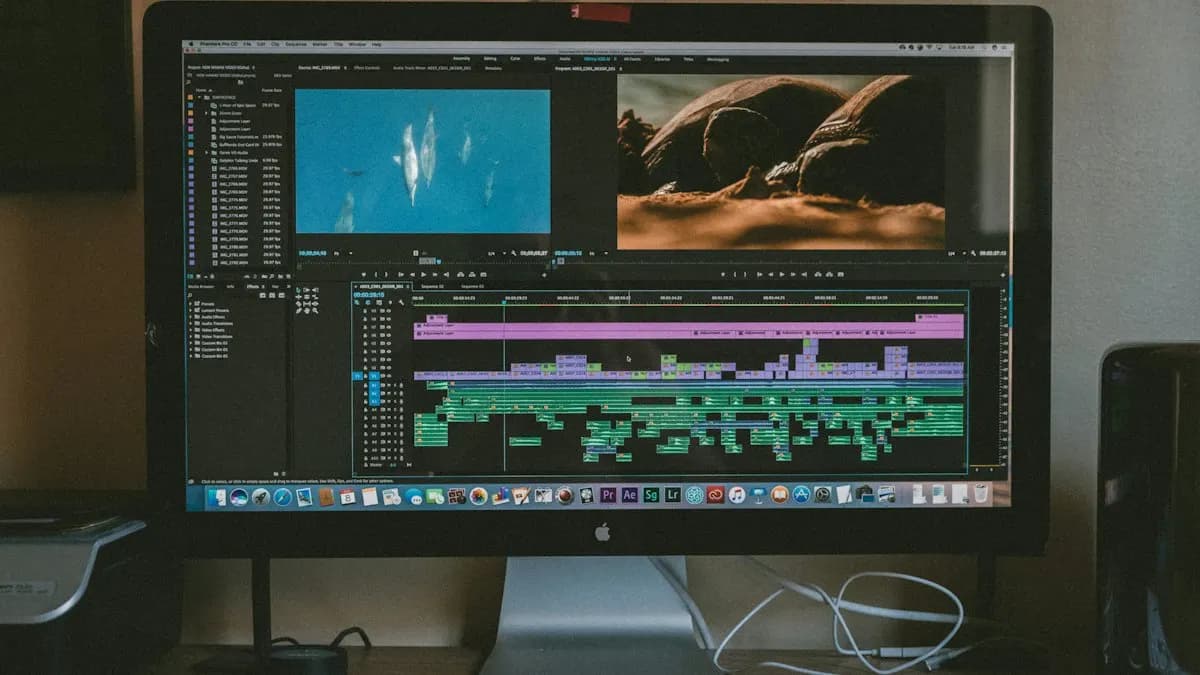
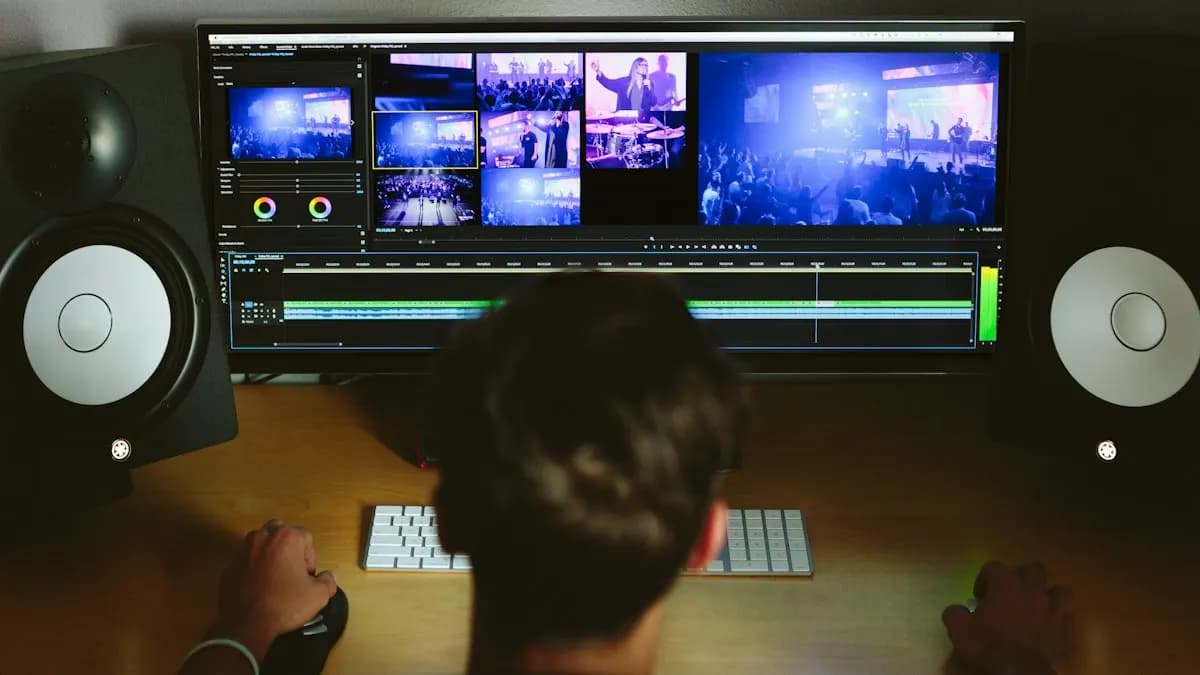
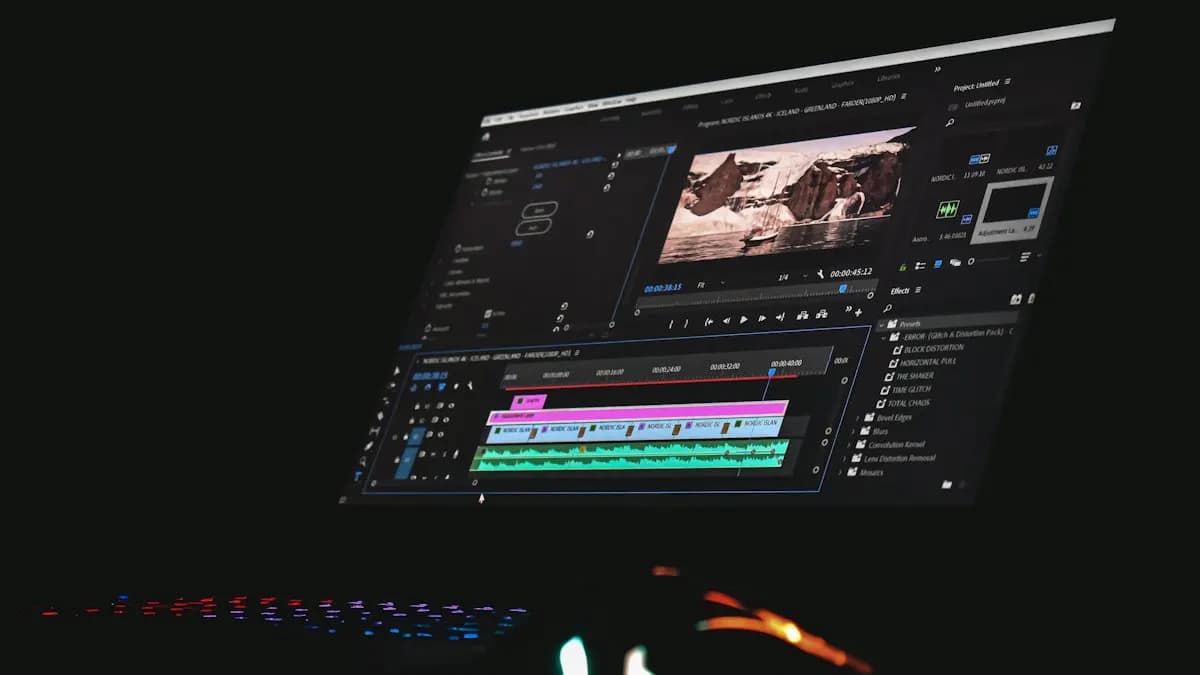
A wedding film or a YouTube episode can have hundreds of cuts. If each cut takes two mouse moves instead of one key, you lose real time every day. Editors who use shortcuts finish faster, keep their attention on the story and make fewer slips.
That is why many studio editing tests watch how you work as well as the final video. If you are new to the software, start with video editing for beginners and then come back to this list.
Premiere Pro Shortcut Keys for Cutting and Timeline Work
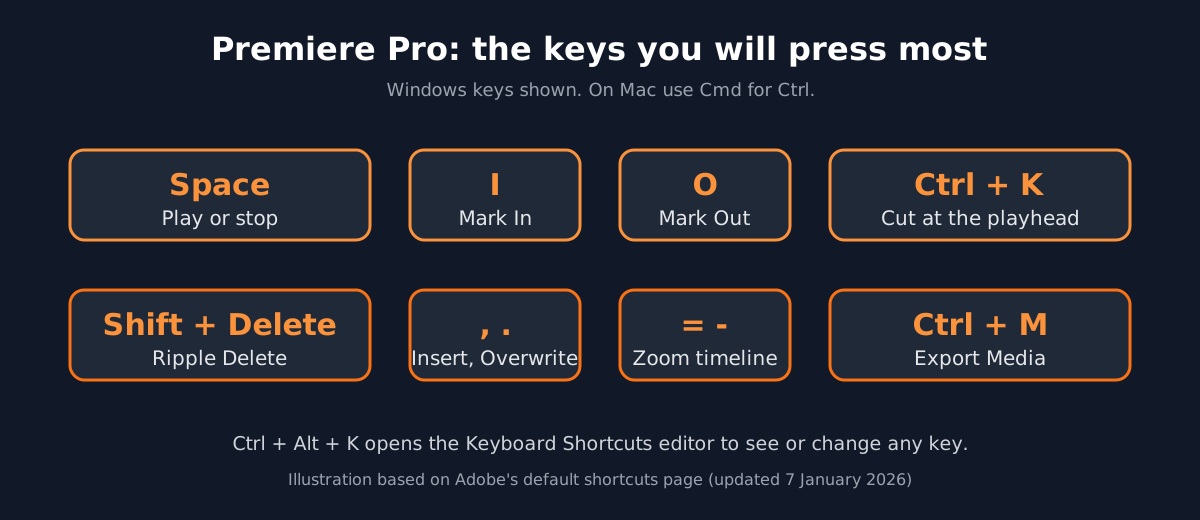
| Action | Windows | Mac |
|---|---|---|
| Play or stop | Space | Space |
| Mark In / Mark Out | I / O | I / O |
| Go to In / Go to Out | Shift + I / Shift + O | Shift + I / Shift + O |
| Add Edit (cut at the playhead) | Ctrl + K | Cmd + K |
| Add Edit to All Tracks | Ctrl + Shift + K | Shift + Cmd + K |
| Ripple Delete | Shift + Delete | Shift + Forward Delete |
| Extend Selected Edit to Playhead | E | E |
| Insert / Overwrite | , / . | , / . |
| Lift / Extract | ; / ' | ; / ' |
| Zoom in / Zoom out on the timeline | = / - | = / - |
| Snap in Timeline on or off | S | S |
| Nudge clip one frame left / right | Alt + Left / Alt + Right | Cmd + Left / Cmd + Right |
| Match Frame | F | F |
All keys in this table are from Adobe's default keyboard shortcuts page for Premiere, last updated 7 January 2026[1].
Shortcuts for Transitions, Captions, Markers and Export
| Action | Windows | Mac |
|---|---|---|
| Apply Video Transition | Ctrl + D | Cmd + D |
| Apply Default Transitions to Selection | Shift + D | Shift + D |
| Add caption at playhead | Ctrl + Alt + C | Opt + Cmd + C |
| Go to next / previous marker | Shift + M / Ctrl + Shift + M | Shift + M / Shift + Cmd + M |
| Render Effects In to Out | Enter | Enter |
| Export Media | Ctrl + M | Cmd + M |
| Save | Ctrl + S | Cmd + S |
| Undo / Redo | Ctrl + Z / Ctrl + Shift + Z | Cmd + Z / Shift + Cmd + Z |
| Keyboard Shortcuts editor | Ctrl + Alt + K | Cmd + Opt + K |
Exporting for Reels? Our Premiere Pro settings for Instagram Reels guide covers the export settings after Ctrl + M.
Tool Keys and the J, K, L Keys
Adobe's Tools panel page says you can hover over any tool to see its name and keyboard shortcut[2]. In Adobe's older default list, V is the Selection tool, C is the Razor tool, B is Ripple Edit, N is Rolling Edit and A is Track Select, while J, K and L play backward, stop and play forward[3]. Hover once to confirm the keys on your version, since shortcuts can be customised.

Worked Example: A 10-Minute Shortcut Drill
Take a 3-minute talking video of a friend (a hypothetical practice clip) and do this without touching the mouse:
- 1Find the best take
Use L, K and J to scan. Press I at the start of the best answer and O at the end.
- 2Place it
Press comma to insert it into the timeline.
- 3Remove the pauses
At each long pause, press Ctrl + K at the start and end, select the gap and press Shift + Delete.
- 4Check your edit
Press = to zoom in on tight cuts and Space to play.
- 5Save and export
Ctrl + S, then Ctrl + M.
Do this daily for a week and the keys become habit. Once they are, speed up the software itself with our guide to make Premiere Pro faster.
Portfolio Projects That Show Your Editing Speed
- A 60-second interview cut with all pauses removed and clean captions.
- A wedding-style Reel from multi-camera footage; see wedding video editing for the skills studios check.
- A 30-second product video with transitions, music cut to the beat and an export for Instagram.
Also learning motion graphics? The After Effects shortcuts list works the same way.
AI and Agentic AI in Premiere Pro Editing Today
Editors now use Premiere's Enhance Speech for clean dialogue, automatic captions and Auto Reframe for vertical versions. Adobe's AI Assistant, in public beta in Premiere since June 2026, can carry out several editing steps from one plain-language request[4].
What the human still decides: which take is best, where the story breathes and when a cut feels wrong. Shortcuts keep your hands fast while you make those calls. CABA's courses now teach AI and agentic AI workflows inside the curriculum, with a human check on every edit.
Why One-to-One Training Helps With Shortcuts
Shortcuts are easy to read and hard to make habit. In one-to-one training, a trainer watches your hands, stops you when you reach for the mouse and gives you drills on your own footage. That is how speed builds.
Our video editing course in Delhi covers Premiere Pro, After Effects and sound editing with real projects. It comes with a 100% Job Guarantee; read the job guarantee terms. See the video editing course page to book a counselling visit.
Frequently Asked Questions
What are the most important Premiere Pro shortcut keys?
Space (play), I and O (mark in and out), Ctrl + K (add edit), Shift + Delete (ripple delete), comma and full stop (insert and overwrite), = and - (zoom) and Ctrl + M (export). On a Mac use Cmd instead of Ctrl.
How do I see or change shortcuts in Premiere Pro?
Open the Keyboard Shortcuts editor with Ctrl + Alt + K on Windows or Cmd + Opt + K on Mac. You can search a command, see its key and assign a new one.
What is the shortcut to cut a clip in Premiere Pro?
Add Edit is Ctrl + K on Windows and Cmd + K on Mac. It cuts the targeted tracks at the playhead. Ctrl + Shift + K cuts all tracks.
What is ripple delete in Premiere Pro?
Ripple Delete removes a clip or gap and closes the space, so later clips move left. The shortcut is Shift + Delete on Windows and Shift + Forward Delete on Mac.
Are Premiere Pro shortcuts the same on Windows and Mac?
Mostly. Cmd replaces Ctrl and Opt replaces Alt. A few differ, such as nudging a clip one frame, which is Alt + arrow on Windows and Cmd + arrow on Mac.
References
- Default keyboard shortcuts in Premiere (updated 7 January 2026)- Adobe Help
- Tools panel options in Premiere (updated 7 January 2026)- Adobe Help
- Default keyboard shortcuts (older Premiere Pro list)- Adobe Help
- Adobe Unveils Major Expansion of Creative Agent Across Firefly and Creative Cloud Apps (18 June 2026)- Adobe Newsroom