How Do You Increase the Undo Limit in Photoshop?
- 1Open Performance preferences
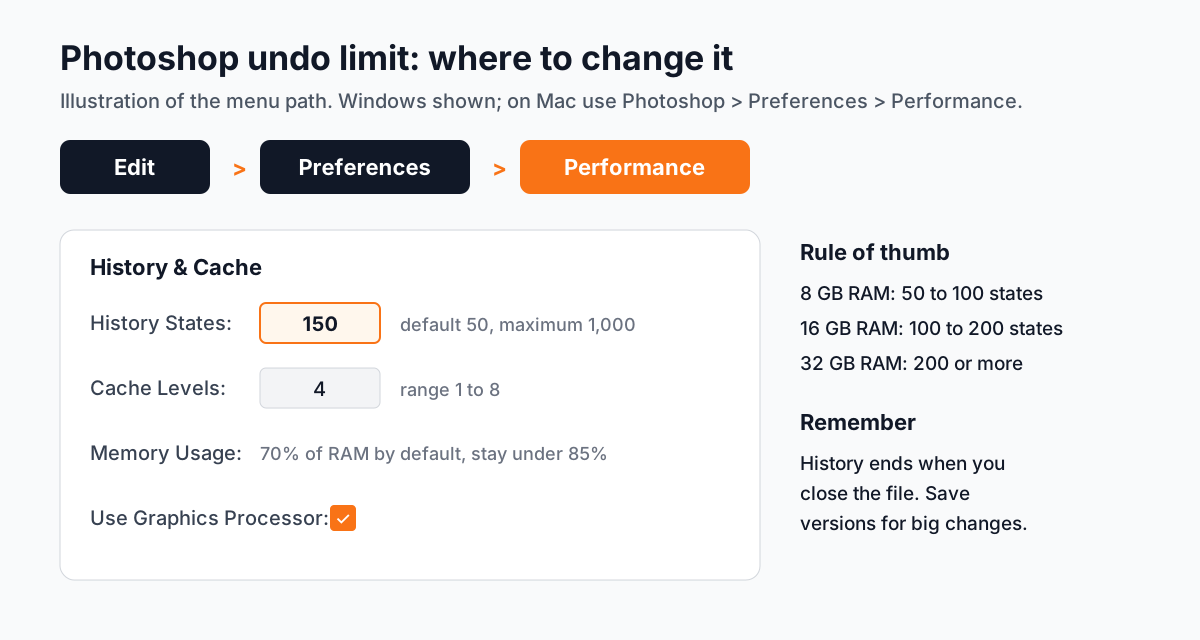
Windows: Edit > Preferences > Performance. Mac: Photoshop > Preferences > Performance.
- 2Find History & Cache
In the History & Cache section, type a number in History States.
- 3Choose a sensible number
The default is 50 and the maximum is 1,000[1]. Each state uses memory. A filter on a full image uses far more than a small brush stroke. On a 16 GB laptop, 100 to 200 is a good balance.
- 4Click OK
The new limit works from your next action.
What Is the Photoshop Undo Shortcut? Why Is Undo Not Working?
| Action | Windows | Mac |
|---|---|---|
| Undo (step by step) | Ctrl + Z | Cmd + Z |
| Redo | Shift + Ctrl + Z | Shift + Cmd + Z |
| Back to last save | File > Revert | File > Revert |
If Ctrl + Z only toggles between the last two steps, the old undo style is switched on. Go to Edit > Keyboard Shortcuts and Menus and check the Use Legacy Undo Shortcuts option. Turn it off for normal multi-step undo, then restart Photoshop[2].
Other common reasons undo seems to fail: you reached the History States limit, you are typing in a text box (undo then works inside the text) or the action was a program setting, which history does not record.
How Do History Snapshots Save Your Work?
Open Window > History. At the bottom, choose Create New Snapshot and give it a name like "before colour". A snapshot is a saved state you can jump back to at any time while the file is open, without adding layers or file size[3].
- Make a snapshot before every big change: colour grading, liquify, a filter on the whole image.
- Turn on Automatically Create New Snapshot When Saving in History Options so each save marks a point.
- Remember: snapshots and history end when you close the document. For changes you may need tomorrow, save a version (file_v2.psd) or duplicate the layer.
Which Other Photoshop Settings Should Designers Set on Day One?
- Memory usage: Photoshop uses 70% of available RAM by default. If it is your main app, raise it in steps of 5%, but Adobe advises staying under 85%[1]. Restart after changing it.
- Graphics processor: in the same Performance panel, tick Use Graphics Processor so brushes, zoom and many filters are faster.
- Scratch disks: Edit > Preferences > Scratch Disks on Windows (Photoshop > Settings > Scratch Disks on Mac). Pick your fastest SSD with plenty of free space and put it first[4]. A full C drive is the most common cause of the "scratch disks are full" error.
- Cache levels: keep 4 for normal work. Use 1 or 2 for small files with 50 or more layers. Use more than 4 for very large images.
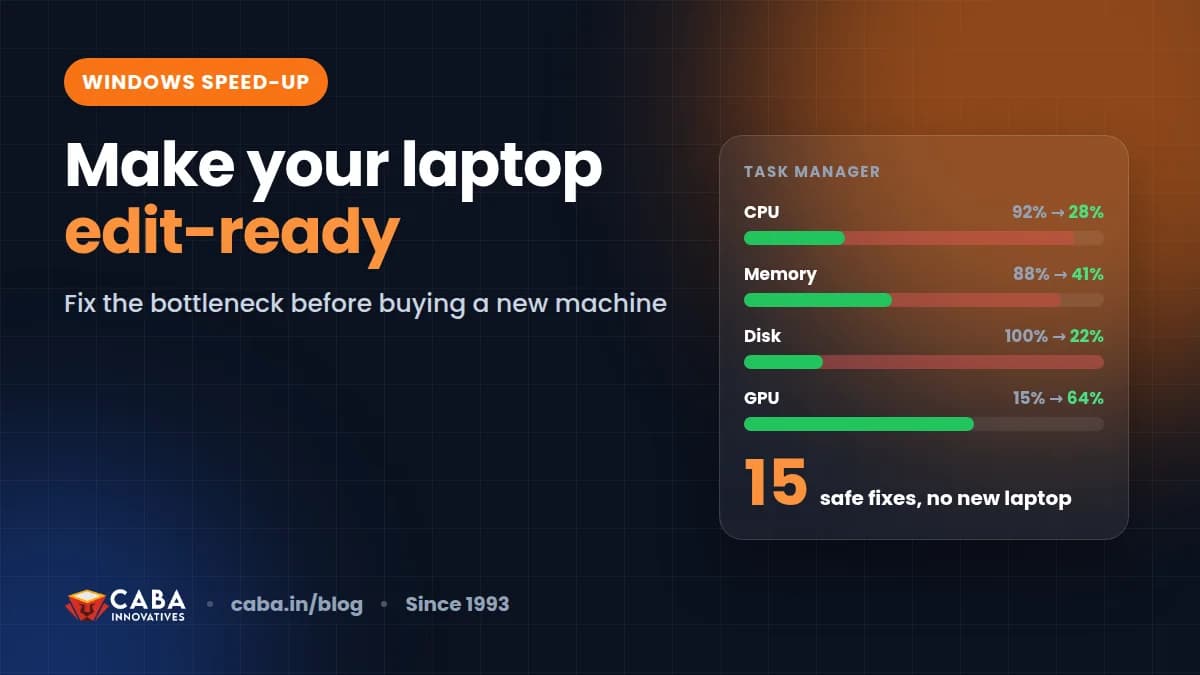
Windows itself also affects Photoshop speed. Our speed up Windows for video editing and design guide covers startup apps, power mode and drives.
How Should You Use Photoshop AI Features and Still Keep Undo Safe?
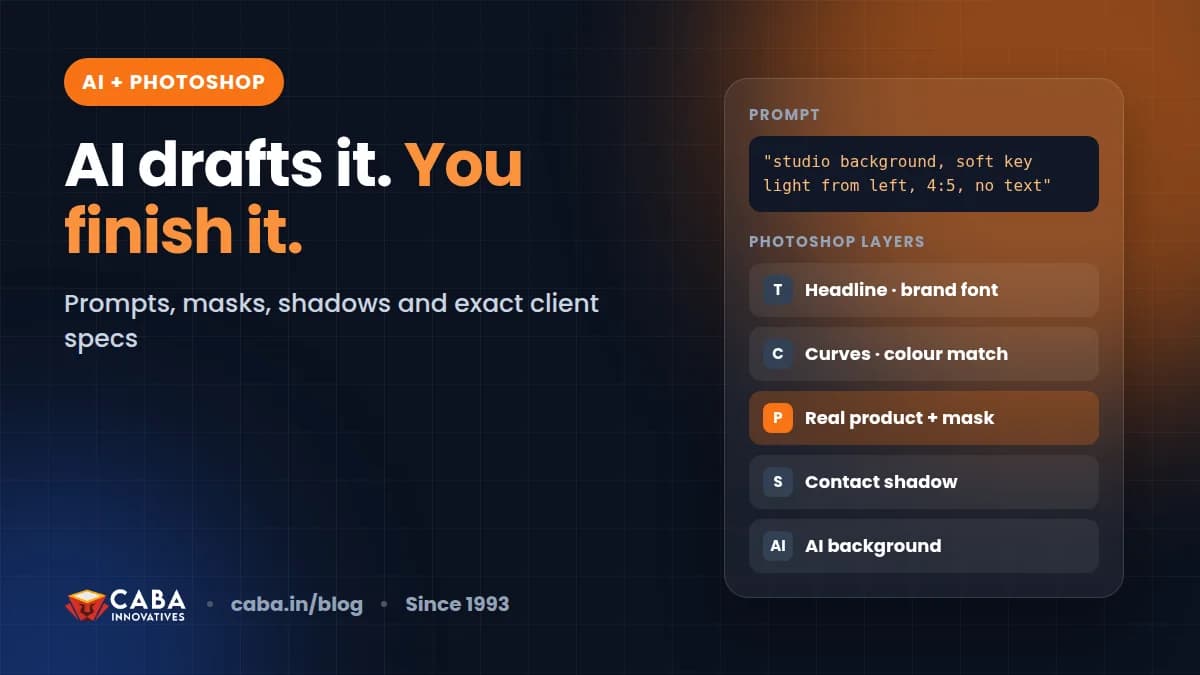
Generative AI in Photoshop can extend a background, remove objects or add elements from a prompt. Treat AI results like any other edit you may want to undo next week: keep them on their own layer, keep the original photo layer untouched and check every edge, hand and logo before the client sees it. Our AI Photoshop prompts and finishing steps guide shows the human finishing that AI images still need.
Why Do Studios Care How You Set Up Photoshop?
In an agency, files go back and forth for days. A client says "go back to the first version of the banner" on Thursday. A designer who works non-destructively, saves versions and knows where history ends can do that in minutes. One who flattened layers and relied on Ctrl + Z cannot. That habit is one of the first things senior designers check in a fresher.
Which Photoshop Projects Show These Skills in a Portfolio?
- A product photo retouch with before and after. Shows clean, non-destructive work.
- A social media campaign of 6 posts. Same brand style, smart objects for repeated elements.
- A festival banner in three sizes. Print, Instagram and website versions from one master file.
Worked example (project 1): open the product photo and make a snapshot called "original". Duplicate the background layer. Remove dust and marks with the Spot Healing Brush on a new empty layer. Fix colour with a Curves adjustment layer, not a direct edit. Clean the background with a layer mask. Now you can show the client any stage, turn the colour fix up or down, or start again from the snapshot. Export the before and after side by side for your portfolio.
Why Does 1-to-1 Training Help With Photoshop?
Photoshop habits form in the first few weeks. In one-to-one training the trainer watches your screen and corrects habits like painting directly on the photo or flattening layers before they stick. The trainer also sets memory, scratch disks and history for your own laptop. You work on projects from your own field at your own pace.
Our graphic design course in Delhi covers Photoshop, Illustrator, layout, branding and AI tools with real projects. Premium 1-to-1 students get the "100% Job Guarantee on Premium 1-to-1" under written terms. If you are new to the field, start with what is graphic design, then see the Photoshop and graphic design course page for timings and fees.
Frequently Asked Questions
What is the maximum undo limit in Photoshop?
Photoshop allows up to 1,000 history states. The default is 50. Change it in Preferences > Performance under History & Cache. Higher numbers use more memory.
Why does Ctrl + Z only undo one step in Photoshop?
The Use Legacy Undo Shortcuts option is probably on. Turn it off in Edit > Keyboard Shortcuts and Menus and restart Photoshop to get normal multi-step undo.
Does increasing history states slow down Photoshop?
It can. Each state uses memory. Edits that change many pixels use the most. If Photoshop slows down, lower History States to around 100 or give Photoshop more RAM.
Can I undo after closing a file in Photoshop?
No. History and snapshots end when you close the document. Save versions of your file and work with layers, masks and adjustment layers so you can still go back later.
Does CABA Innovatives teach Photoshop settings in the graphic design course?
Yes. Students learn Photoshop with real projects, including setting up preferences, memory and non-destructive working habits. Details are on the graphic design course page.
References
- Configure Photoshop performance preferences- Adobe Help Center (Photoshop)
- Use Undo and Redo commands- Adobe Help Center (Photoshop)
- Use snapshots in the History panel- Adobe Help Center (Photoshop)
- Set up and manage scratch disks- Adobe Help Center (Photoshop)