Why Do Reels Settings Matter in a Video Editing Job?
Most video editing jobs in Delhi now include Reels. Brands post several a week and the client sees the result on a phone, not on your big monitor. A Reel with wrong settings looks soft, has captions hidden behind buttons or shows black bars and the client blames the editor, not Instagram.
Studios expect a new editor to set this up correctly without being told. It is one of the first things checked in a practical test. If you already work in After Effects, our After Effects settings for Instagram Reels guide covers the same job in that app.
Step 1: Create a 1080 x 1920 Sequence
- 1New sequence
Choose File > New > Sequence and open the Settings tab[1].
- 2Frame Size
Under Video, enter 1080 horizontal and 1920 vertical. Premiere shows the 9:16 aspect ratio for you[1].
- 3Frame rate
Match your footage, usually 25 or 30 frames per second for phone video. Do not mix rates without a reason.
- 4Name and save it
Call it something like Reel_1080x1920_30fps so you can reuse it for every Reel.
Step 2: Turn a Horizontal Edit Into a Reel With Auto Reframe
Clients often hand you a finished YouTube video and ask for Reels from it. You do not need to re-edit from scratch.
- Select the sequence in the Project panel and choose Sequence > Auto Reframe Sequence[3].
- Pick the 9:16 target aspect ratio. Premiere makes a duplicate sequence in an Auto Reframe Sequences folder and keeps your original safe[3].
- Choose Slower Motion for talking-head videos, Default for most content and Faster Motion for sports or fast action[3].
- Turn on Clip Nesting if your edit has speed changes or complex keyframes you want to keep[3].
Always watch the result. Auto Reframe can follow the wrong person in a group shot, so fix those keyframes by hand.
Step 3: Keep Text Inside the Reels Safe Zone
Instagram places the caption, buttons and profile name over your video. Meta's Reels ads guide asks you to keep the top 14%, the bottom 35% and 6% on each side free of key text and logos[2]. On a 1080 x 1920 frame that is roughly 270 pixels at the top, 670 at the bottom and 65 on each side.
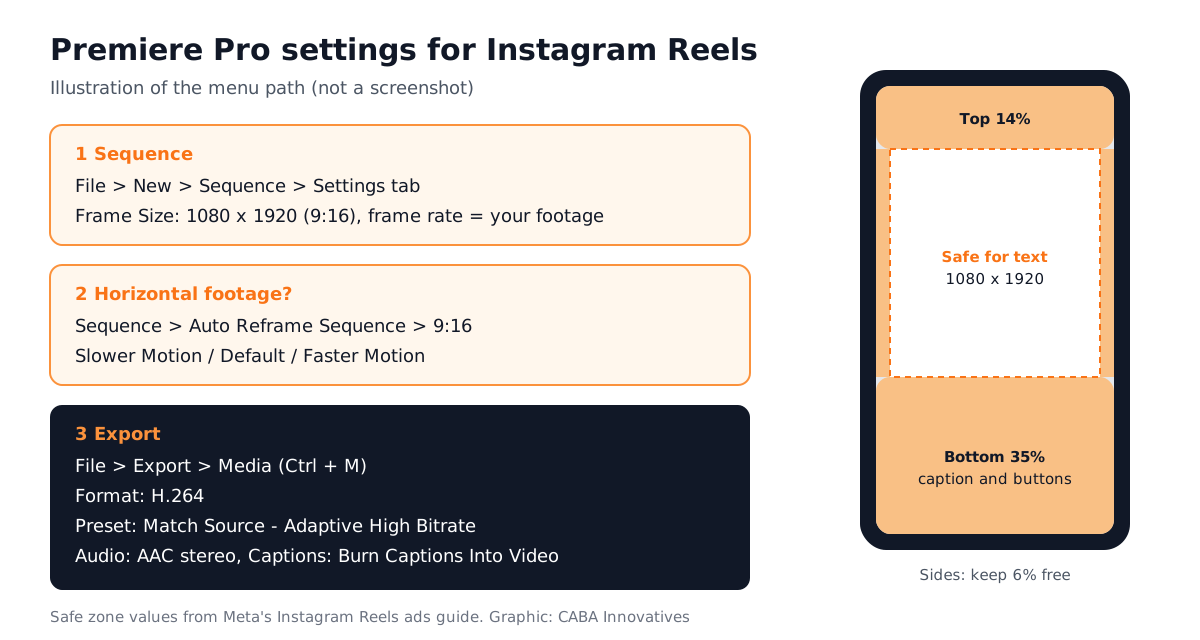
Make a simple PNG guide with these margins, put it on the top video track while you edit and switch it off before export.
Step 4: Export Settings That Stay Sharp
| Setting | What to choose | Why |
|---|---|---|
| Open export | File > Export > Media (Ctrl + M / Cmd + M) | Opens Export mode[4] |
| Format | H.264 | Adobe recommends it for most online video[4] |
| Preset | Match Source - Adaptive High Bitrate | Matches the sequence size and frame rate[4] |
| Performance | Hardware Accelerated | Faster encoding where your system supports it[5] |
| Bitrate encoding | VBR, 2 pass | Better quality for the file size, slower export[5] |
| Use Maximum Render Quality | On, if you scale 4K down to 1080 | Keeps detail when the size changes[5] |
| Audio | AAC, stereo, same sample rate as recorded | Meta asks for stereo AAC at 128 kbps or more[2] |
Why Reels look blurry: most often the source was soft, the sequence was the wrong size or the bitrate was set very low to save space. Instagram compresses every upload again, so start from a clean, high-quality export.
Step 5: Captions, Preset and a Final Check
- Captions: in the Captions section of Export mode choose Burn Captions Into Video so they show on every phone, even with sound off[5].
- Save a preset: once the settings are right, save them as your own export preset and reuse it for every Reel.
- Final check: watch the exported file on your phone before you send it. Check text, faces near the edges and the first second, which decides whether people keep watching.
If Premiere feels slow while you do all this, our make Premiere Pro faster guide covers the settings that fix lag.
Three Portfolio Projects for Reels in Premiere Pro
- Shop Reel: a 20-second Reel for a local shop with captions and a logo end card. Pair it with a short logo animation in After Effects.
- Talking-head cut-down: take a 10-minute interview, Auto Reframe it and cut three 30-second Reels with burnt-in captions.
- Before and after: the same Reel exported wrong (low bitrate, text in the bottom zone) and right, side by side, to show clients you know the difference.
Worked example (hypothetical): a Karol Bagh gym owner sends a 12-minute horizontal workout video. You run Auto Reframe Sequence with Faster Motion, trim three 25-second Reels, move the captions above the bottom 35% and export with your saved preset. Three Reels, ready in an afternoon, from one shoot.
Do Delhi Video Editing Jobs Ask for Reels?
Yes. On 21 October 2026 Internshala's Delhi motion graphics and video listings showed 76 openings[6] and many asked for Reels. Two examples in our own words (company names left out):
- Video editor, Delhi NCR (1 year). Edits raw footage into Instagram Reels and YouTube videos. Skills listed include Photoshop, Illustrator, Premiere Pro and Final Cut Pro. Pay shown: ₹2 to 2.4 lakh a year.
- Junior video editor, Delhi (1 year). Turns raw footage into publish-ready social videos. Skills listed include Premiere Pro, Photoshop, Illustrator, AI video generation and AI image generation. Pay shown: ₹2 to 3.2 lakh a year.
Video editors in Delhi NCR typically start at ₹12,000 to ₹15,000 a month, reach ₹18,000 to ₹22,000 after a year and ₹30,000 to ₹35,000 in about two years. Read how to become a YouTube video editor for the longer-format side of the job.
AI and Agentic AI in Reels Editing Today
Auto Reframe already does in seconds what used to take an hour of manual keyframing. Adobe has announced an AI assistant for Premiere (public beta) that can carry out editing tasks from a text request[7] and the junior editor post above asks for AI video generation.
What the human still decides: the hook in the first second, where to cut, whether the caption text is correct and whether faces stay in frame after reframing. CABA's courses now teach AI and agentic AI workflows inside the curriculum, with the editor checking every frame before delivery.
Why 1-to-1 Training Helps With Settings Like These
Settings are easy to read and easy to forget. In a 1-to-1 class the trainer watches you set up the sequence, reframe a real client video and export it, then points out the one setting you missed. After doing it on five or six real projects, it becomes habit.
Our video editing course in Delhi covers Premiere Pro, After Effects, sound editing and AI tools, with Reels and YouTube projects for your portfolio. The Premium plan carries a 100% Job Guarantee; read the job guarantee terms. New to editing? Start with video editing for beginners, then see the full plan on our video editing course page.
Frequently Asked Questions
What are the best Premiere Pro settings for Instagram Reels?
Use a 1080 x 1920 sequence (9:16) at your footage's frame rate, keep text inside the safe zone and export H.264 with the Match Source - Adaptive High Bitrate preset and AAC stereo audio. Use VBR 2 pass when quality matters.
How do I make a vertical sequence in Premiere Pro?
Choose File > New > Sequence, open the Settings tab and set Frame Size to 1080 horizontal and 1920 vertical. Premiere shows the 9:16 aspect ratio automatically.
Why do my Reels look blurry after upload?
Usually the source was soft, the sequence was the wrong size or the export bitrate was too low. Instagram compresses every upload again, so export a clean, high-quality H.264 file.
Can Premiere Pro convert a horizontal video to vertical?
Yes. Select the sequence and choose Sequence > Auto Reframe Sequence with a 9:16 target. Premiere makes a new reframed sequence and keeps the original.
Should I burn captions into Reels?
Yes for most client work. Choose Burn Captions Into Video in the Captions section of Export mode so captions appear on every phone.
References
- Set the aspect ratio of a sequence (updated 8 April 2026)- Adobe Help Center
- Video ad specs on Instagram Reels (viewed 21 October 2026)- Meta Ads Guide
- Add Auto Reframe effect to sequences (updated 15 April 2026)- Adobe Help Center
- Export video in Premiere (updated 7 January 2026)- Adobe Help Center
- Overview of export settings (updated 18 August 2026)- Adobe Help Center
- Motion Graphics Jobs in Delhi (listings viewed 21 October 2026)- Internshala
- Adobe Unveils Major Expansion of Creative Agent Across Firefly and Creative Cloud Apps (18 June 2026)- Adobe Newsroom