Why Do After Effects Settings Matter for Instagram Reels?
Instagram shows Reels full screen on a tall phone. If your composition is the wrong shape, the app crops or adds bars. If your text sits where the caption and buttons go, nobody reads it. If the export is soft or uses a changing frame rate, Instagram's own compression makes it worse.
In agencies and brand teams, a motion designer may deliver many Reels a week. Nobody has time to fix the size or move a logo after the client has seen it. Setting the composition right on day one is a basic skill employers check in a test task.
What Composition Settings Should You Use for a Reel?
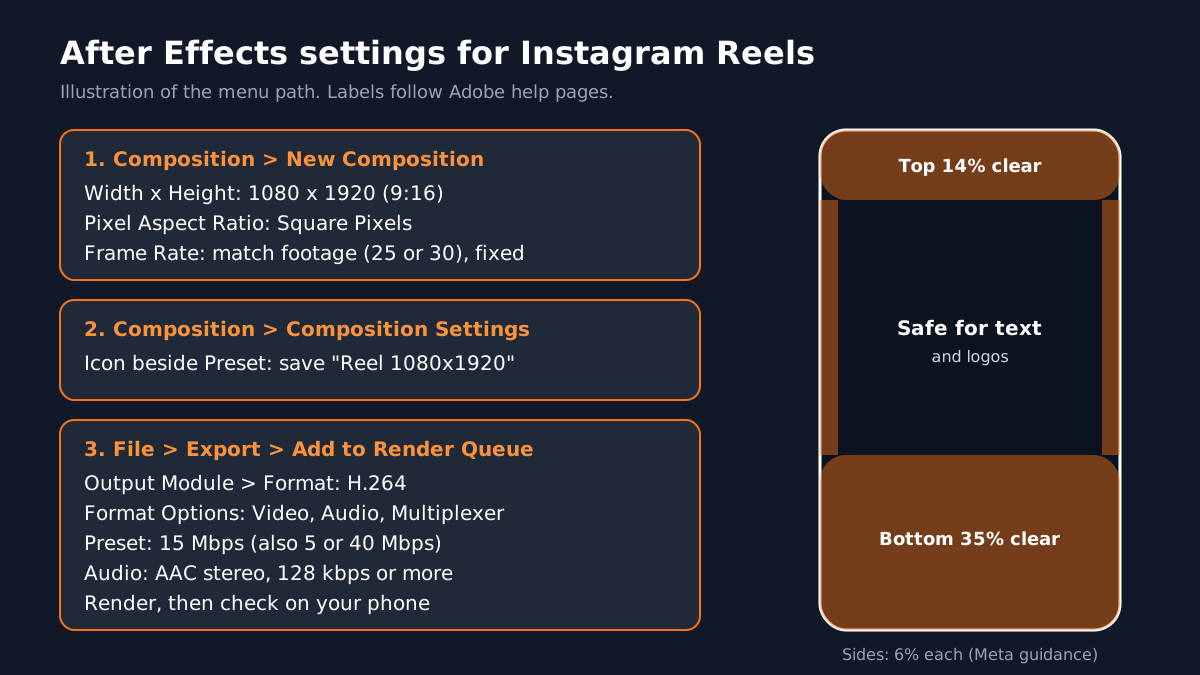
Create the composition with Composition > New Composition. To change it later, use Composition > Composition Settings[1]. Use these values:
| Setting | Value for Reels | Why |
|---|---|---|
| Width x height | 1080 x 1920 px | The 9:16 vertical shape Reels use |
| Lock Aspect Ratio | Off while typing the size | So you can enter width and height freely |
| Pixel aspect ratio | Square pixels | Meta's video guide asks for square pixels |
| Frame rate | Match your footage, often 25 or 30 fps | Meta asks for a fixed frame rate |
| Duration | Your Reel length plus a little extra | Room to trim the ending |
| Background | Black or your brand colour | Avoids transparent edges on export |
Meta's ads guide recommends 1440 x 2560 for Reels ads[2]. For normal posts, many editors work at 1080 x 1920, which is lighter on the computer. Pick one size and keep it for the whole project.
How Do You Save the Reel Setup as a Preset?
- 1Open the settings
Choose Composition > Composition Settings on your finished Reel composition.
- 2Click the save icon
Click the icon beside the Preset drop-down menu.
- 3Name it clearly
For example "Reel 1080x1920 30fps", then click OK.
- 4Reuse it
Next time, pick the preset from the list in New Composition.
Adobe's own tutorial on vertical video uses the same Preset save step[1]. It takes ten seconds and saves you from typing sizes for every Reel.
Where Is the Safe Zone on an Instagram Reel?
Meta advises leaving at least 14% of the top, 35% of the bottom and 6% of each side free from text, logos and other key elements, so the profile icon, caption and buttons do not cover them[2]. On a 1080 x 1920 composition that works out to about:
- Top: about 270 px free
- Bottom: about 670 px free
- Left and right: about 65 px free on each side
What Are the Best After Effects Export Settings for Instagram Reels?
Current versions of After Effects export H.264 (.mp4) directly from the Render Queue[3]:
- 1Add to the queue
Select your composition and choose File > Export > Add to Render Queue.
- 2Open the Output Module
In the Render Queue panel, click the Output Module setting.
- 3Choose H.264
Set Format to H.264. Then open Format Options to check Video, Audio and Multiplexer settings.
- 4Pick a bitrate preset
After Effects offers H.264 presets at 5, 15 and 40 Mbps. The 15 Mbps preset is the default and a sensible start for a 1080 x 1920 Reel.
- 5Check audio
Meta asks for stereo AAC audio at 128 kbps or more[2].
- 6Render and test
Watch the file on your phone before you upload.
If After Effects shows a settings mismatch warning, read it. It tells you what it will change to meet H.264 rules. You can also send the composition to Adobe Media Encoder when you need more control. For faster everyday work, keep our After Effects shortcuts list open.
Why Are My Instagram Reels Blurry After Export?
- Small composition. A 720 px wide composition stretched to a phone screen looks soft. Use 1080 x 1920.
- Low bitrate. A 5 Mbps export of busy motion can break up. Try the 15 Mbps preset.
- Changing frame rate. Mixed footage at different rates causes judder. Match your composition to the main footage.
- Upload settings. Check your Instagram app's media quality settings for a highest-quality upload option before posting.
- Fine text. Very thin fonts break up after compression. Use bolder weights for Reels.
Which Reel Projects Should You Add to Your Portfolio?
- Kinetic text Reel (15 seconds): a quote or offer animated word by word, all inside the safe zone.
- Product reveal Reel (10 seconds): a product photo with motion, light sweep and a logo end card.
- AI-assisted 3D Reel: a 3D element made with an AI tool, animated in After Effects and finished in Premiere Pro.
Worked example. Say a cafe in Hauz Khas wants a 15-second Reel for its new cold coffee. Make a 1080 x 1920, 30 fps composition from your preset. Place the drink photo in the middle third. Animate the name "Cold Coffee" in from the left at 1 second, stay above the bottom 670 px. Add the price card at 8 seconds. End with the logo at 12 seconds. Export H.264 at 15 Mbps with AAC audio and check it on your phone. That is one finished portfolio piece in an afternoon.
New to the software? Start with After Effects for beginners and set up your After Effects preferences before your first project. To see where Reels fit in a real job, read what does a motion graphics designer do.
AI and Agentic AI in After Effects Work Today
Adobe has announced an AI assistant for After Effects (private beta) and one for Premiere (public beta) that can carry out several steps from one request[4]. Editors also use AI tools to make 3D elements and background plates, then animate them in After Effects.
The motion designer still decides timing, safe zones, brand colours and the final export check. CABA's courses now teach AI and agentic AI workflows inside the curriculum, so you learn the tools and the checks together.
Why Does One-to-One Training Help With Settings Like These?
Settings look simple in a list. In real work they go wrong in small ways: footage at 25 fps in a 30 fps composition, a logo two pixels into the unsafe zone, a client asking for a feed version too. A trainer who watches your screen spots these at once and shows you why.
Our motion graphics course in Delhi and online covers Photoshop, Illustrator, InDesign, Affinity by Canva, Premiere Pro, After Effects and AI tools over 10 months, with real Reel briefs. The Premium plan carries a 100% Job Guarantee; read the job guarantee terms. Looking for an editing institute first? See video editing institute in Delhi, or book a trial class on our motion graphics course in Delhi.
Frequently Asked Questions
What are the best After Effects settings for Instagram Reels?
Use a 1080 x 1920 composition (9:16) with square pixels and a fixed frame rate that matches your footage. Keep text out of the top 14%, bottom 35% and 6% of each side. Export H.264 from the Render Queue, starting with the 15 Mbps preset, with stereo AAC audio.
What is the composition size for Instagram Reels in After Effects?
1080 x 1920 pixels is the common working size. Meta's ads guide recommends 1440 x 2560 for Reels ads. Both are 9:16.
How do I export an Instagram Reel from After Effects?
Choose File > Export > Add to Render Queue, click the Output Module, set Format to H.264, check Format Options for video and audio, then render. You can also send the composition to Adobe Media Encoder.
What frame rate should I use for Reels in After Effects?
Use the frame rate of your main footage, often 25 or 30 fps. Keep it fixed. Meta asks for a fixed frame rate.
Why does my After Effects Reel look blurry on Instagram?
Common causes are a small composition, a low bitrate, mixed frame rates, thin text and the app's upload quality setting. Use 1080 x 1920, try 15 Mbps, match frame rates and check the Reel on a phone before posting.
References
- Prepare vertical video for Instagram Stories (17 December 2025)- Adobe Learn
- Video ad specs on Instagram Reels (viewed 20 October 2026)- Meta Ads Guide
- Exporting H.264 from the After Effects Render Queue (updated 8 April 2026)- Adobe Help Center
- Adobe Unveils Major Expansion of Creative Agent Across Firefly and Creative Cloud Apps (18 June 2026)- Adobe Newsroom