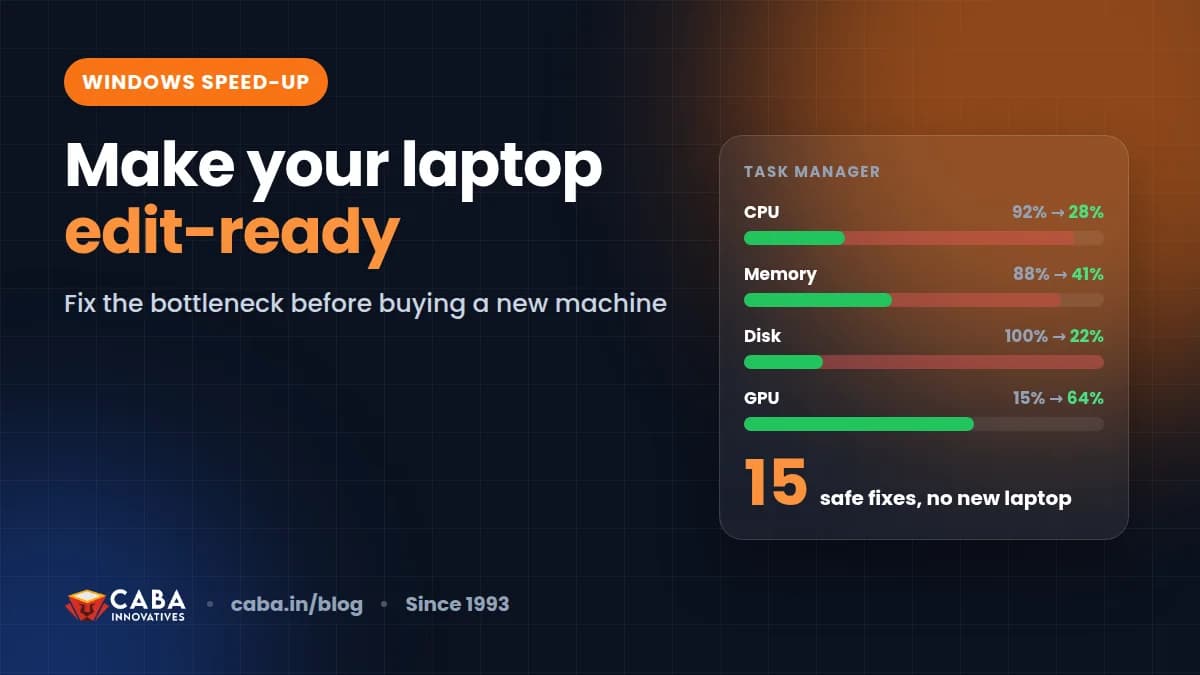
Step 0: Find What Is Actually Slow
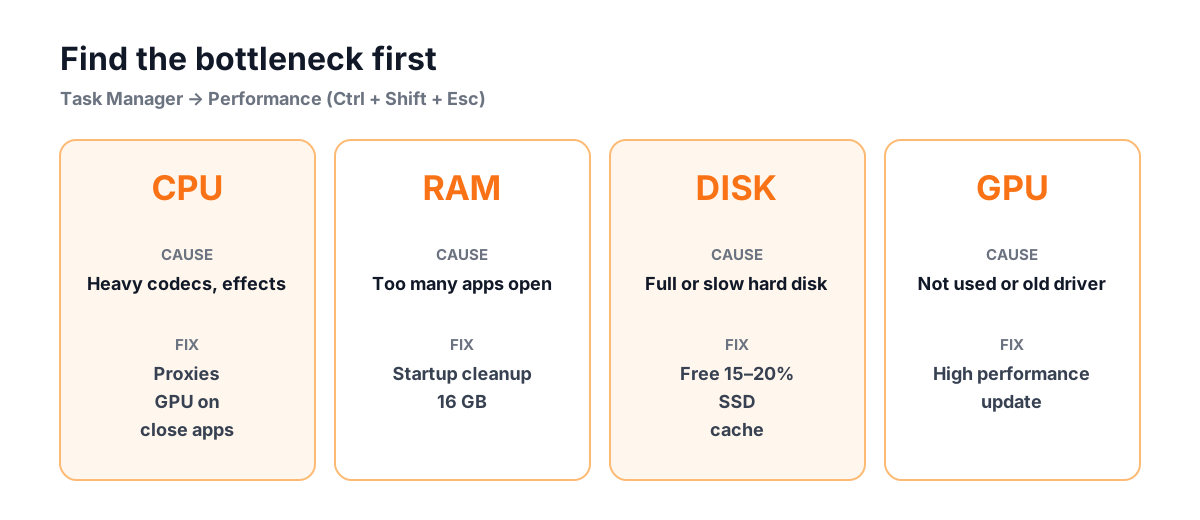
Press Ctrl + Shift + Esc to open Task Manager, then open the Performance tab. Now play your editing timeline or apply a Photoshop filter, and watch which graph hits the top.
| If this is near 100% | It usually means | Go to fix |
|---|---|---|
| CPU | Processor overloaded: heavy codec or effects | Proxies, GPU settings, background apps |
| Memory (RAM) | Too many apps or too little RAM | Close apps, startup cleanup, RAM upgrade |
| Disk | Slow hard disk or full drive | Free space, move cache to SSD, SSD upgrade |
| GPU | Graphics card working hard (this is good while exporting) | Update drivers, check GPU is being used |
Fix 1–3: Startup and Background Apps
- 1Disable startup apps you don't need
Task Manager > Startup apps. Right-click things like game launchers, chat apps, updaters and cloud sync you do not use daily, and choose Disable. Microsoft recommends this to reduce background activity[1]. Do not disable your antivirus or audio/graphics drivers.
- 2Turn off background apps
In Settings > Apps, check apps that are allowed to run in the background and switch off the ones you don't need[1].
- 3Close browsers while editing
A browser with 30 tabs can use several GB of RAM. Close it, or at least the heavy tabs like YouTube and web apps, while editing.
Fix 4: msconfig Settings, Clean Boot and the 'Advanced Options' Myth
Press Win + R, type msconfig and press Enter. This opens System Configuration. It is mainly a troubleshooting tool. Its most useful feature is a clean boot: starting Windows with only Microsoft services, to find out if some third-party software is slowing things down or making your editor crash[2].
- 1Open the Services tab
Tick 'Hide all Microsoft services' first. This is very important.
- 2Disable the remaining services
Click 'Disable all'. These are only non-Microsoft services.
- 3Restart and test your editor
If editing is suddenly smooth, one of those services was the problem. Turn them back on a few at a time to find which one.
- 4Go back to normal startup
When done testing, open msconfig again and choose 'Normal startup' on the General tab[2].
Fix 5–7: Power and Visual Settings
- 1Set Power mode to Best performance
Settings > System > Power & battery > Power mode > Best performance[1]. Laptops quietly slow down the processor to save battery.
- 2Stay plugged in while editing
Many laptops, especially with a dedicated graphics card, run noticeably slower on battery. Edit and export with the charger connected.
- 3Adjust visual effects
Search 'Adjust the appearance and performance of Windows' and choose 'Adjust for best performance'[1]. You lose some animations, but older laptops feel lighter.
Fix 8–9: Make Sure Your Graphics Card Is Being Used
Many laptops have two graphics chips: a basic one built into the processor, and a stronger dedicated one (like NVIDIA or AMD). Windows sometimes runs your editing app on the weak one.
- 1Set graphics preference per app
Settings > System > Display > Graphics. Add Premiere Pro, After Effects, Photoshop or DaVinci Resolve and set each to 'High performance'.
- 2Update the graphics driver
Install the latest driver from your GPU maker's website. NVIDIA offers 'Studio' drivers meant for creative apps. Microsoft also recommends keeping drivers updated[1].
Inside Premiere Pro, check File > Project Settings > General and make sure the renderer says GPU Acceleration (not Software Only), if your card supports it[4].
Fix 10–12: Disk Space and Cache
- 1Keep 15–20% of the drive free
When your C: drive is almost full, Windows and your editor both slow down. Use Settings > System > Storage to clean temporary files, and turn on Storage Sense[1].
- 2Clear your editor's media cache
Editors store preview files that can grow to many GB. In Premiere Pro, go to Preferences > Media Cache and delete unused cache files[3]. DaVinci Resolve and After Effects have similar cache clean-up options.
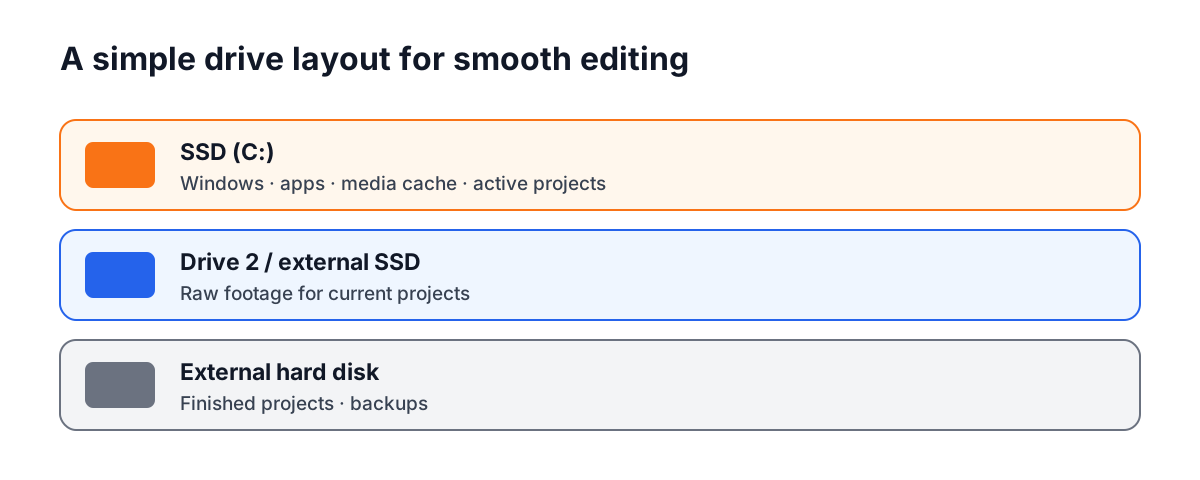
- 3Put cache on the fastest drive
If you have both an SSD and a hard disk, set the media cache and scratch disks to the SSD, and keep old finished projects on the hard disk.
Fix 13–14: Settings Inside Your Editor
- Lower the playback resolution to 1/2 or 1/4 while editing. It does not affect the final export[4].
- Use proxies for heavy phone or 4K footage. Edit light copies, export from originals. See our guide on editing phone videos on a basic laptop.
- Render the preview of heavy effect sections (Premiere: Sequence > Render In to Out) so they play in real time.
- Save projects on the SSD and turn on auto-save, so a crash doesn't cost you hours.
What About 'Tiny' or Debloated Windows Versions?
You may see videos recommending 'tiny' or 'lite' versions of Windows, which are unofficial modified copies with many parts removed. They can feel faster on very old machines, but we do not recommend them for a machine you use for client work.
- They are not made by Microsoft, so you are trusting whoever modified them.
- Removed parts can break updates, drivers or creative software in unexpected ways.
- Security updates may be missing, which is risky when handling client files.
The safer path is the fixes above on genuine Windows, plus an SSD and RAM upgrade if needed.
Fix 15: When It's Time to Upgrade Hardware
Upgrades in order of value for editing and design
| Upgrade | What you will notice | Good to know |
|---|---|---|
| Hard disk → SSD | Faster start-up, apps open quickly, smoother timelines | Biggest improvement for older laptops |
| 8 GB → 16 GB RAM | More layers and apps open without freezing | Check if your laptop's RAM can be upgraded |
| Dedicated GPU (desktop or new laptop) | Faster effects, colour grading and exports | Most useful for After Effects, Resolve and 4K |
| Newer processor | Everything faster, especially exports | Usually means a new laptop |
Many of us learned editing on machines far slower than today's basic laptops, where a single render ran overnight. The lesson from those years still holds: a well-organised system and good habits matter as much as raw power.
Once your system is fast, the next step is skill. See the video editing course details or the motion graphics course.
Frequently Asked Questions
Why is my laptop slow when video editing?
The usual causes are too many startup and background apps, the laptop running on battery or in power-saving mode, a nearly full drive, a large media cache, the editor using built-in graphics instead of the dedicated GPU, or heavy phone and 4K footage without proxies.
Does changing msconfig make Windows faster?
Not directly. msconfig is a troubleshooting tool. A clean boot can help you find a program that is slowing things down, but setting 'number of processors' or 'maximum memory' in advanced boot options does not add speed. Leave those unticked.
How much RAM do I need for video editing?
8 GB can handle simple 1080p edits. 16 GB is comfortable for most social media and YouTube work with several layers. Heavy 4K, After Effects or colour grading benefit from more.
Is it safe to clear the media cache in Premiere Pro?
Yes. Media cache files are preview and conform files that Premiere can recreate. Clearing them frees space. The first playback after clearing may be a little slower while it rebuilds.
Should I install a 'tiny' version of Windows for editing?
It is not recommended for work machines. These are unofficial modified builds that may miss security updates or break drivers and software. Use the free fixes on genuine Windows and upgrade to an SSD and more RAM if needed.
References
- Tips to improve PC performance in Windows — Microsoft Support
- How to perform a clean boot in Windows — Microsoft Support
- Clear media cache in Premiere — Adobe Help Center
- Fix choppy playback in Premiere — Adobe Help Center