Why AI Gives You a Draft, Not a Final Design
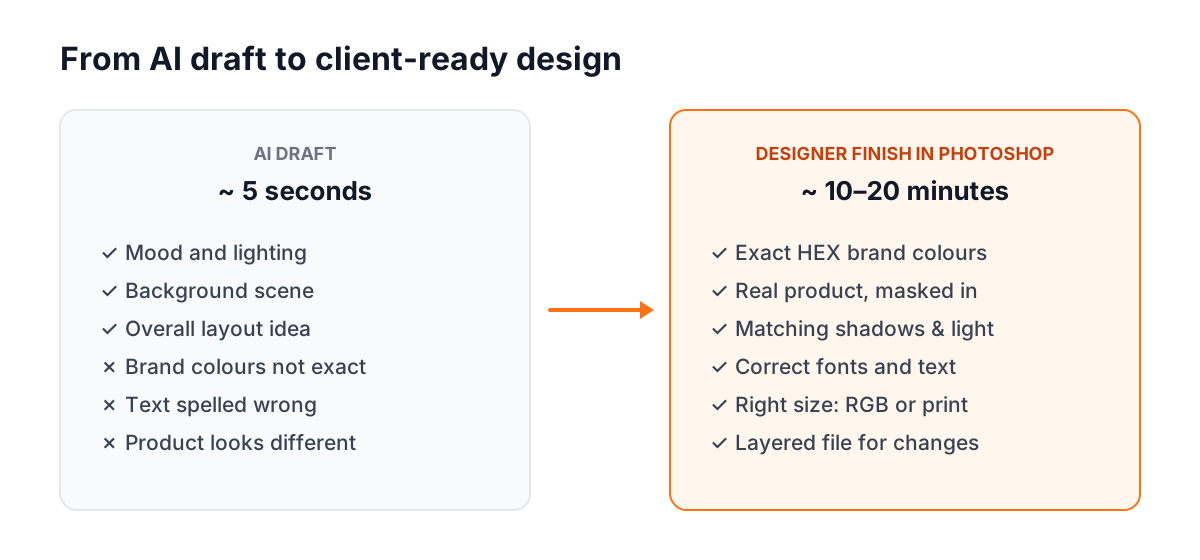
Type a prompt, wait five seconds, and you get an image that looks almost finished. It feels like magic the first few times. The problem is the word almost. A real client does not ask for 'a nice image'. They ask for their product, their colours, their offer text, in the exact size their printer or Instagram needs.
This is where most beginners get stuck. They change the prompt ten, twenty, thirty times, hoping the AI will finally get it right. A designer who knows Photoshop does something simpler: picks the best draft and fixes it in ten minutes.
What a client asks for vs. what AI usually gives
| Client asks for | What AI usually does | How a designer fixes it |
|---|---|---|
| Exact brand colour, e.g. #F97316 | Gives a 'close enough' orange | Colour overlay / Hue-Saturation with the exact HEX |
| Offer text: 'Flat 30% Off – Diwali Sale' | Spelling mistakes, strange letters | Remove AI text, add real type with the brand font |
| Their real product in the picture | Draws a similar but wrong product | Cut out the real product photo and place it in the AI scene |
| Logo with exact shape and spacing | A new, random version each time | Rebuild as vectors in Illustrator |
| Print file for a 3×6 ft banner | Small screen-size image | Correct size, resolution and CMYK setup before export |
| Same style across 10 posts | Every image looks a bit different | Build a template with fixed grid, fonts and colours |
Why Design Words Make Your Prompts Better
AI image tools learned from millions of photos and designs that were described using photography and design language. So when you use the same language, you get far more control. Someone who has studied light, colour and layout in Photoshop writes better prompts than someone who has not. That is why learning the basics still matters.
Design terms that change your AI results
| Term | What it means | Use it in a prompt like |
|---|---|---|
| Key light / soft light | Main light and how gentle it is | soft key light from the left at 45 degrees |
| Rim light | Thin light on the edges to separate subject from background | subtle rim light on the product edges |
| High key / low key | Bright and airy vs dark and dramatic | high key, white background, soft shadows |
| Shallow depth of field | Background blurred, subject sharp | shallow depth of field, 85mm lens look |
| Negative space | Empty area for text | large negative space on the right for headline text |
| Complementary colours | Opposite colours on the colour wheel | teal and orange complementary colour scheme |
| Flat vector | Simple shapes, no texture | flat vector illustration, 3 colours, no gradients |
| Aspect ratio | Shape of the image | 4:5 vertical for Instagram feed |
Prompts 1–5: Product and E-commerce Photos
Replace the words in [brackets] with your details. For product work, generate the background only, then place the real product photo in Photoshop. Your client's product must look exactly like the real thing.
Empty studio background for a product photo, seamless light grey paper sweep, soft key light from the left, gentle shadow falling to the right, high key, no objects, 4:5 vertical, photorealistic
Modern Indian kitchen counter, morning window light from the right, shallow depth of field, empty space in the centre foreground for placing a product, warm neutral colours, photorealistic, 1:1
Festive Diwali background with soft bokeh lights and marigold flowers at the edges, deep maroon and gold colour scheme, clear empty centre for a product and headline, low key lighting, 16:9
Minimal pastel podium on a soft peach background, top-down soft light, subtle contact shadow on the podium, empty top surface for a product, calm premium mood, 4:5
Rough stone surface outdoors at golden hour, warm rim light from behind, blurred green leaves in the background, empty stone surface in the foreground for a product, photorealistic
Prompts 11–15: Backgrounds and Textures
Seamless off-white handmade paper texture, subtle fibres, even flat lighting, no shadows, high resolution, tileable
Soft gradient mesh background, colours #F97316, #FDBA74 and #FFF7ED, smooth blend, light grain, 16:9, no objects
Out-of-focus warm bokeh lights on a dark background, shallow depth of field, circular highlights, festive mood, 16:9
Flat vector geometric pattern inspired by Indian block prints, two colours, indigo on cream, clean edges, seamless repeat
Clean corporate backdrop, blurred modern office with glass walls, cool daylight, desaturated blue-grey tones, space in the centre for a person cut-out, 16:9
Prompts 16–20: Logo and Icon Ideas (Sketches Only)
Use these to explore ideas. A logo has to be a clean vector file that works at every size, from a visiting card to a hoarding. An AI image is pixels, so it cannot be your final logo.
Logo concept sketch, monogram of the letters [A] and [K], geometric, single line weight, black on white, flat vector style, no gradients, no mockup
Minimal logo symbol for a small café called [Chai Point], a cup combined with a leaf, flat vector, two colours, simple shapes, works in one colour, white background
Set of 6 line icons for a design institute website: laptop, pen tool, camera, video play, graph, certificate, consistent 2px stroke, rounded corners, flat, black on white
Friendly mascot concept for a kids' learning app, simple round shapes, flat colours, front view, plain white background, character sheet style
Circular badge logo concept for a fitness studio, bold sans-serif placeholder text, dumbbell symbol in the centre, flat vector, single colour
Prompts 21–25: Photo Fixes with Generative Fill
Photoshop's Generative Fill lets you select an area and describe what should appear there[1]. Short, specific prompts work best here, because the selection already tells it where to work.
extend the wall and floor naturally, same lighting
Use with Crop tool: widen the canvas first, select the empty area, then use this prompt. Great for turning a 1:1 photo into 16:9.
clean empty pavement
Select the unwanted person or object with the Lasso tool with a little extra margin, then generate.
small green potted plant on the table, soft shadow
Draw the selection in the size and place you want the plant. Size of selection = size of object.
soft evening sky with light orange clouds
Select the sky with Select > Sky first. Then match the colour of the rest of the photo with a Curves layer.
plain navy blue formal shirt, natural fabric folds
Useful for team photos where one person wore the wrong colour. Keep the selection inside the edges of the shirt.
How to Place a Real Product into an AI Background (Step by Step)
This is the most common job in e-commerce and ads today: the client sends a phone photo of their product, and you make it look like a studio shoot. AI makes the background. Photoshop makes it believable.
- 1Cut out the product
Open the product photo and use Select > Subject. Refine the edges with Select and Mask. Output as a Layer Mask so you can fix it later.
- 2Match the angle
Look at the camera height in the AI background. If the table is seen from above, your product photo must also be from above. Wrong angle is the number one reason composites look fake.
- 3Add a contact shadow
New layer under the product, set to Multiply. Paint a thin dark line where the product touches the surface, then blur it slightly. Without this, the product looks like it is floating.
- 4Add a cast shadow
Copy the product shape, fill it black, distort it in the direction opposite to the light, blur it and lower the opacity. Check it matches the light direction you used in the prompt.
- 5Match the colours
Add a Curves adjustment clipped to the product. Adjust the Red, Green and Blue channels separately until the product's whites and shadows match the scene. This is where knowing channels pays off.
- 6Match the grain and sharpness
AI backgrounds are often very smooth. Add a little noise to the product or the background so both look like they came from the same camera.
- 7Add real text and export
Use the client's brand font and exact colours. Export for the right place: RGB for screens, and the printer's required size and colour mode for print.
When the Client Says 'Just Change This One Thing'
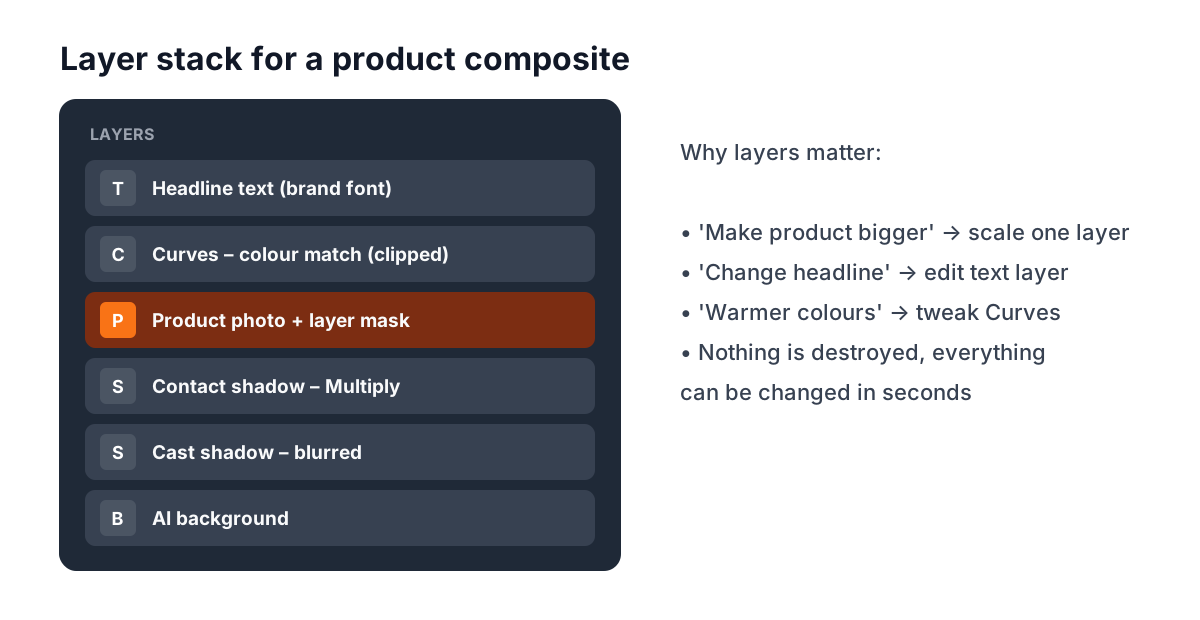
This is the real test. The client loves the design but wants the headline bigger, the logo moved, the model's shirt in their brand colour and the product rotated a little. If you only have a flat AI image, you have to start again and hope the AI gives something similar. If you built it in layers in Photoshop, each change takes a minute.
- Keep every element on its own layer: background, product, shadows, text, logo.
- Use adjustment layers, not direct edits, so you can undo any colour change.
- Save the PSD along with the exported JPG or PNG. The PSD is your real work.
- Make logos and icons in Illustrator so they scale to any size without getting blurry.
- Write down the specs before starting: sizes, colours, fonts, deadline, where it will be used.
No Photoshop on This Computer? Useful Online Tools
Sometimes you are on a borrowed laptop, working remotely, or the software is simply not installed. These browser tools can save the day. They are handy extras, not a replacement for learning the real software properly.
| Tool | What it is good for | Keep in mind |
|---|---|---|
| Photopea | Browser editor with layers, masks and PSD support. Feels close to Photoshop[2] | Free with ads. Needs a decent internet connection for big files |
| remove.bg | One-click background removal[3] | Free downloads are lower resolution. The site has announced its standalone service closes on 1 December 2026[3] |
| Adobe Express background remover | Quick cut-outs in the browser[4] | Needs a free login. Good for quick social posts |
So Do You Still Need to Learn Photoshop and Illustrator?
Yes, and more than before. The people who get the most out of AI are the ones who already understand light, colour, layout and typography. They write better prompts, they spot mistakes faster, and they can finish the job when the AI cannot.
Designers who worked in the 1990s built these same composites by hand on slow machines, one mask at a time. Today the tools are faster, but the thinking is the same: where is the light coming from, does the shadow match, is the text readable, does it look like the brand? Learn those basics once and every new tool, AI included, becomes easy to pick up.
If you want to learn this properly with a trainer next to you, see our graphic design course details. To go further into animated ads and reels, look at motion graphics.
Frequently Asked Questions
What is the best prompt structure for AI images?
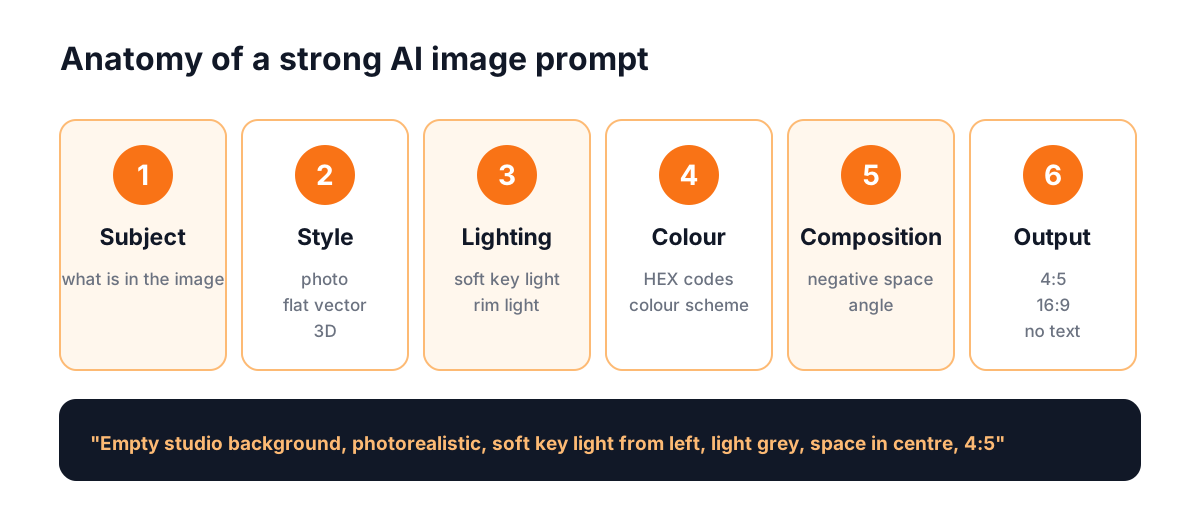
Write it in six parts: subject, style, lighting, colour, composition and output size. For example: 'Empty studio background, photorealistic, soft key light from the left, light grey, empty centre for a product, 4:5'. Each part gives the AI one clear instruction.
Can AI replace Photoshop for client work?
Not for finished client work. AI is excellent for ideas, backgrounds and quick fixes, but exact brand colours, correct text, real products, logos and print files still need Photoshop or Illustrator. Most professionals now use both together.
Can I use an AI-generated image as my logo?
Use it only as a sketch. A logo must be a clean vector file, so redraw it in Illustrator. Also check it does not look like an existing brand, and read the AI tool's terms for commercial use.
Is there a free alternative to Photoshop that works in a browser?
Photopea runs in the browser and supports layers, masks and PSD files. It is useful when Photoshop is not installed, but most studios and agencies still expect you to know Photoshop itself.
Why does AI spell text wrong in images?
Image models draw letters as shapes rather than typing them, so spelling mistakes are common. The simple fix is to ask for 'no text' and 'negative space' in your prompt, then add the text yourself in Photoshop with the correct font.
References
- Use Generative Fill in Photoshop on desktop — Adobe Help Center
- Photopea – online photo editor — Photopea
- Remove Background from Image for Free — remove.bg
- Free AI background remover — Adobe Express
- Copyright and Artificial Intelligence — U.S. Copyright Office