Which Canva Shortcuts Save the Most Time?
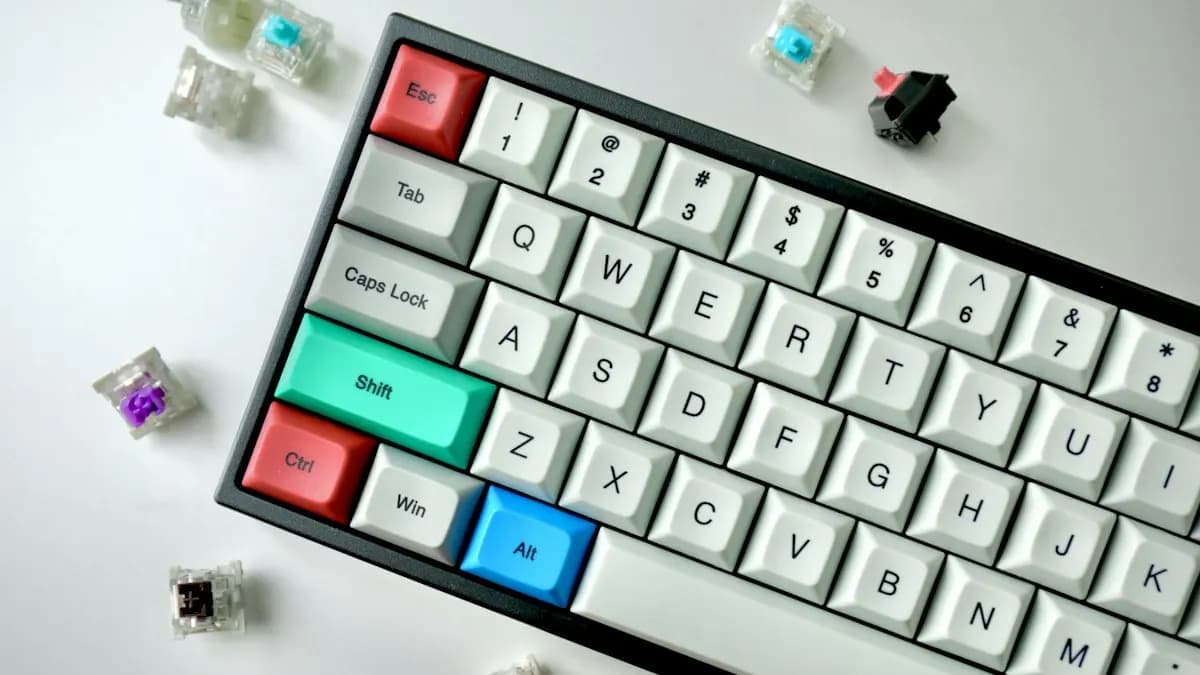
Most beginners click through menus for everything. Professionals keep one hand on the keyboard. These are the Canva keyboard shortcuts worth learning first, as listed on Canva's Help Centre on 14 November 2026 (Windows keys shown; on a Mac use Command for Ctrl and Option for Alt)[1]:
| Task | Windows shortcut | Why it matters |
|---|---|---|
| Quick actions | / or Ctrl + E | Search for any tool or element without leaving the canvas |
| Show layers | Alt + 1 | Find hidden or stacked elements in busy designs |
| Show rulers and guides | Shift + R | Line things up to margins instead of by eye |
| Duplicate | Ctrl + D | Build a series of posts from one master design |
| Group / ungroup | Ctrl + G / Ctrl + Shift + G | Move a logo and tagline together without breaking them |
| Lock element | Alt + Shift + L | Stop the background or logo moving by mistake |
| Tidy up | Alt + Shift + T | Even out the spacing between selected items |
| Copy / paste text style | Alt + Ctrl + C / Alt + Ctrl + V | Match headings across pages in seconds |
| Open font menu | Shift + Ctrl + F | Change fonts without hunting in the toolbar |
| Add text | T | Add a text box straight away |
Canva Tips for Clean, Professional Layouts
- Use two fonts at most: one for headings, one for body text. Too many fonts is the fastest way to make a Canva design look like a template.
- Leave space at the edges: turn on rulers and guides (Shift + R) and keep text away from the edges, especially on Instagram where the app covers parts of the image.
- Lock what should not move: lock the background and logo before you start placing text.
- Check the layers panel: templates often hide extra elements behind photos. Alt + 1 shows them so you can delete what you do not need.
- Tidy up spacing: select a row of icons or text boxes and use Tidy up so the gaps are equal.
- Replace template photos with real ones: clients notice stock images that every other business is using.
These are the same layout rules designers use in Photoshop and Illustrator. If you want to understand which tool to use for which job, see our guide to graphic design tools.
How to Turn One Design Into Many Sizes With Resize
Clients rarely want one size. A festive offer needs an Instagram post, a story, a WhatsApp status and maybe a print poster. Canva's Resize does most of the work[2]:
- 1Open Resize
From the editor menu bar, select Resize.
- 2Pick the sizes
Choose from the suggested sizes, browse by category or enter a custom size. You can pick several sizes at once. Bundles such as Vertical videos group common formats.
- 3Copy, do not overwrite
Select Copy & resize so your original stays as it is. Multiple sizes are saved together in a new folder.
- 4Check every version
Open each new size and fix text that is too close to the edge, photos that are cropped badly and logos that became too small.
Note that Resize (Magic Resize) is available on paid plans such as Pro, Teams and Education. Each use counts against your monthly AI usage limit[2].
Set Up a Brand Kit Before You Design
A Brand Kit stores a business's official logos, colours, fonts and other assets in one place. Team members can then use them from inside the editor. Admins can also restrict designs to only the colours and fonts in the kit[3]. For freelancers handling several small clients, one kit per client stops the classic mistake of using last week's client's colour on this week's post.
This is also how agencies hand over editable templates. The designer builds the post in Canva using the kit; the shop owner changes only the date and the offer. Our guide to graphic design for social media explains how to build that kind of weekly template system.
Why These Canva Skills Matter in the Industry
Many small businesses, schools, clinics and coaching centres now ask for designs in Canva so their staff can edit them later. Healthcare job posts in Delhi this week listed Canva next to Photoshop and CorelDRAW, as we noted in our guide to graphic design for clinics and hospitals. A designer who can build a clean, locked, on-brand Canva template is useful to these clients.
But Canva is usually the extra skill, not the main one. Employers still ask for Photoshop and Illustrator for photo editing, logos and print files. Our Canva course guide explains what Canva can and cannot do for your career.
Canva With AI and Agentic AI: Where the Human Still Decides
Canva has built AI into the editor. Magic Resize makes new formats and counts against your plan's AI usage limit[2]. Canva AI can also generate and refine designs from a written prompt[3]. Designers also pair Canva with AI assistants such as ChatGPT or Gemini to draft captions and post ideas from a brief, then build the design themselves.
What the designer still decides: whether the layout reads clearly, whether the AI-made image or text is accurate and on-brand and whether a resized version still works. AI drafts often crowd text or crop faces badly. CABA's courses now teach AI and agentic AI workflows inside the curriculum, with the trainer checking each finished piece.
3 Canva Practice Projects for Your Portfolio
- Weekly post templates for a cafe: a Brand Kit, three locked templates (menu item, offer, review) and a guide for the owner on what to edit.
- A 10-slide presentation: a pitch for a local business with one font pair, a fixed colour palette and consistent slide layouts.
- A festive campaign in four sizes: one design resized to post, story, WhatsApp status and A4 poster, each version checked and fixed.
Worked example for the third project: say a sweet shop wants a Diwali offer. Design the Instagram post first (1080 x 1350 px) with the offer, shop name and phone number. Use Resize with Copy & resize to make a story, a status and an A4 poster. Then open each copy: move the phone number up on the story so the app does not cover it, enlarge the shop name on the poster for print and check that the diyas in the photo are not cut in half. Put all four side by side in your portfolio with the brief. More ideas are in our list of graphic design projects for students.
Why One-to-One Training Helps, Even for Canva
Canva is simple to start, so people stop learning too early. Most weak Canva designs have the same problems: too many fonts, uneven spacing, crowded text and template photos. A trainer spots these in seconds and shows you the fix, which is hard to see in your own work.
Our graphic design course in Delhi teaches Canva alongside Photoshop, Illustrator, InDesign and AI tools, through real client-style projects with one-to-one feedback. It comes with a 100% Job Guarantee; read the job guarantee terms. See the full plan on the graphic design course page.
Frequently Asked Questions
What are the best Canva tips and tricks for beginners?
Learn the main shortcuts (/ for quick actions, Alt + 1 for layers, Shift + R for rulers, Ctrl + D to duplicate), use two fonts at most, set up a Brand Kit and use Resize with Copy & resize for other formats.
How do I see all layers in Canva?
Press Alt + 1 on Windows or Option + 1 on a Mac to show layers, as listed in Canva's keyboard shortcuts help page.
Is Magic Resize free in Canva?
According to Canva Help, Resize is available on plans such as Pro, Teams, Business, Enterprise and Education. Each use counts against your monthly AI usage limit.
Can I get a graphic design job knowing only Canva?
It is hard. Most job posts ask for Photoshop and Illustrator, with Canva as a useful extra.
How do I keep spacing equal in Canva?
Select the elements and use Tidy up (Alt + Shift + T on Windows) so the gaps between them become equal.
References
- Canva keyboard shortcuts (viewed 14 November 2026)- Canva Help Center
- Resize designs and size limits- Canva Help Center
- Set up Brand Kits- Canva Help Center