Where Are Photoshop's Performance Settings?
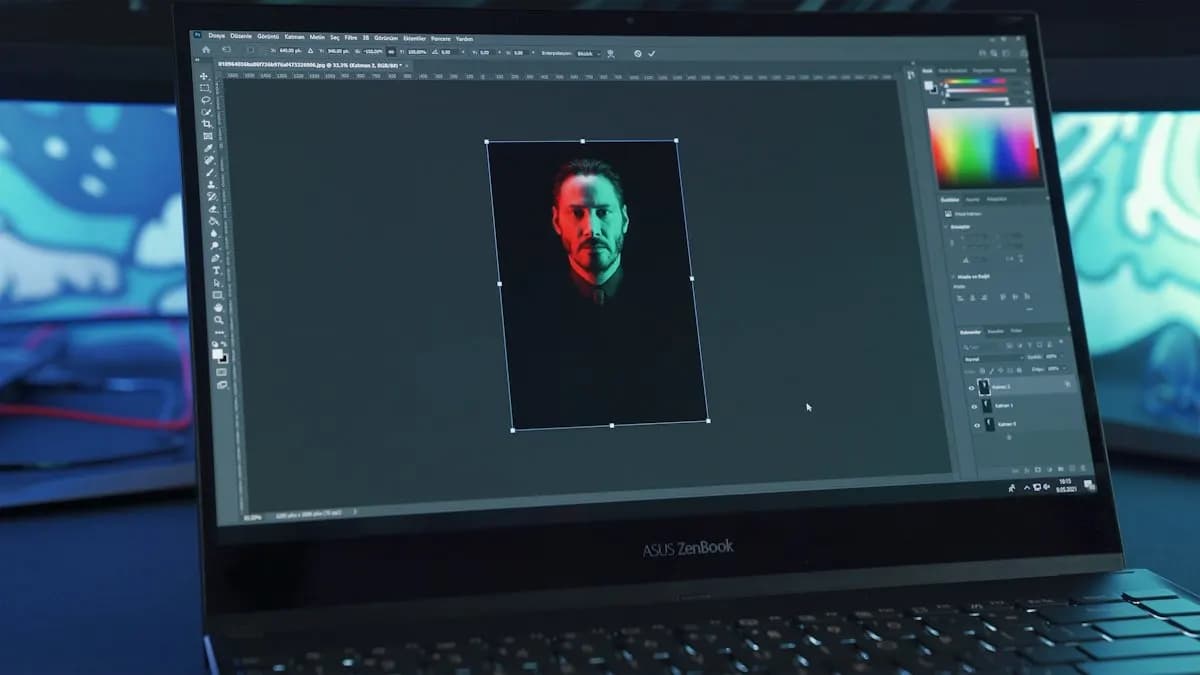
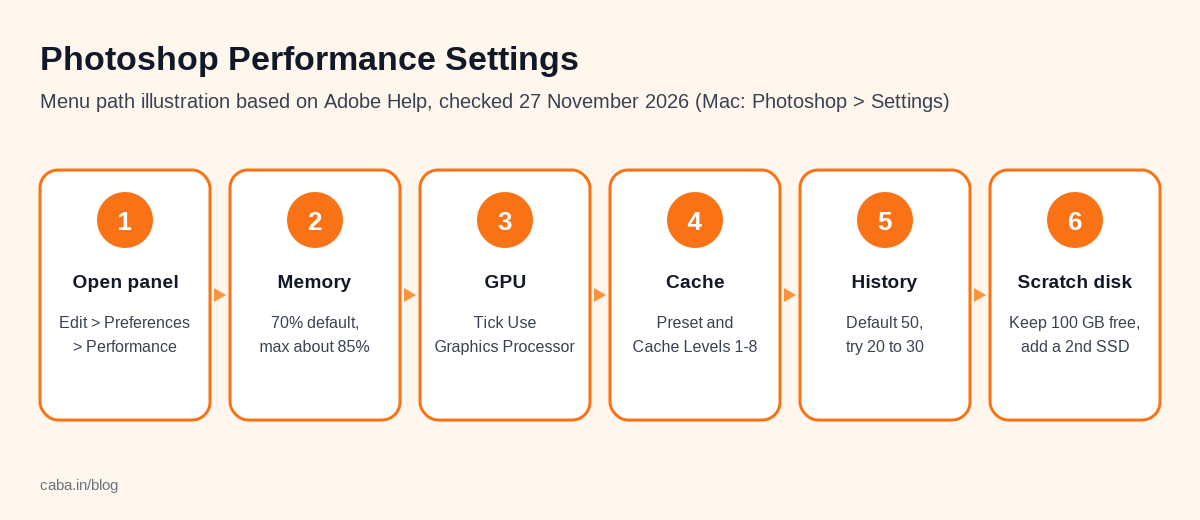
Open Edit > Preferences > Performance on Windows, or Photoshop > Settings > Performance on a Mac (older versions call it Preferences). Adobe's help page lists four groups here: Memory Usage, Graphics Processor Settings, History & Cache and Multithreaded Compositing[1].
8 Settings That Make Photoshop Faster
- 11. Memory Usage
Look at Available RAM and the Ideal Range, then drag Let Photoshop Use. The default is 70%; Adobe advises not going above 85%. Restart Photoshop after changing it[1].
- 22. Use Graphics Processor
Tick it if your graphics card is detected. It helps screen redraws and features such as Blur Gallery and Smart Sharpen. If it is greyed out or unticks itself after a crash, update the graphics driver first[1].
- 33. Cache preset
Tiny for small files with many layers, Default or Photos for normal work, Big or Huge for large images and panoramas[1].
- 44. Cache Levels
Range 1 to 8. Higher levels help large images redraw faster but use more memory; 1 to 2 suits files under 1 megapixel with 50 or more layers[1].
- 55. History States
Default 50, maximum 1,000. Each state uses memory, especially filters on the whole image. Drop to 20 to 30 if Photoshop is slow[1].
- 66. Multithreaded Compositing
Tick it so Photoshop uses several CPU cores when combining layers. It works at once, no restart needed[1].
- 77. Scratch disk space
Adobe suggests keeping at least 100 GB free on the main scratch disk. On Windows, old files starting with Photoshop Temp on the C drive can be deleted when Photoshop is closed[2].
- 88. Add a second scratch disk
Under Preferences > Scratch Disks, add a fast internal SSD as a second drive. Supported formats include NTFS and exFAT on Windows and APFS on Mac[2].
Working Habits That Keep Photoshop Fast
- Close documents you are not using; each one holds memory.
- Work at the final print or screen size, not a huge size "just in case".
- Convert finished layer groups to Smart Objects or merge what you will not edit again.
- Clear the clipboard after copying a large image with Edit > Purge.
- Save often, with Automatically Save Recovery Information turned on in File Handling.
History States also decides how far back you can undo. Our guide to the Photoshop undo limit and history settings explains how to balance speed and safety. Learning the Photoshop shortcut keys saves even more time than any setting.
Still Slow? Reset Preferences
A damaged preferences file can make Photoshop slow or throw scratch disk errors. Close Photoshop, then hold Shift + Alt + Ctrl (Windows) or Shift + Option + Command (Mac) while starting it. Choose Yes to delete the settings file. Then set your performance options again[2].
If the whole computer feels slow, the problem may be Windows itself. Read speed up Windows for video editing and design. Using Premiere Pro too? See make Premiere Pro faster.
Why Studios Expect You to Know This
In a print shop or agency, one designer might handle a 2 GB flex banner file in the morning and 30 social media posts in the afternoon. Studio computers are shared and not always new. A designer who can make Photoshop faster, clear a scratch disk error without panic and keep files lean finishes on time and does not lose work to crashes.
Current Delhi job posts for graphic designers list Photoshop for photo editing, retouching and preparing final artwork in the right sizes and formats. Speed with large files is part of that job.
Portfolio Projects to Practise Photoshop Speed
- A large print banner (for example 10 x 4 feet at the size the printer asks for) with several photos and text layers.
- A set of 10 social media posts built from one template using Smart Objects.
- A retouched product catalogue page with 15 or more product photos.
Worked example: for the banner, set Cache to Big before opening the file, keep History States at 20, place photos as Smart Objects and save a flattened copy for the printer. Note how long a full save takes before and after the changes; that before-and-after number is a good thing to mention in an interview.
Photoshop With AI: Use It, Then Check It
Generative Fill and other AI features in Photoshop add new pixels and layers, which makes files bigger and slower. Generate, pick the best result and delete the variations you do not need. Our Photoshop Generative Fill guide shows how. Some designers also use AI agents to batch-resize approved designs.
What the human still decides: which result is right, whether the image is safe to use for the client and whether the final file is the correct size and colour mode. CABA's courses now teach AI and agentic AI workflows inside the curriculum, with a trainer checking every output.
Why 1-to-1 Training Helps With Photoshop
Speed problems are different on every computer. In a 1-to-1 class the trainer sees your screen, your RAM and your files, then fixes the real cause, not a general list. Our graphic design course in Delhi covers Photoshop, Illustrator, CorelDRAW, InDesign, Canva and AI tools in this way. It carries a 100% Job Guarantee; read the job guarantee page for what it covers.
See the modules on the graphic design course with placement page or call 98117 46259 to book a counselling visit at South Extension.
Frequently Asked Questions
How do I make Photoshop faster on my computer?
Open Preferences > Performance, give Photoshop 70% to 85% of RAM, turn on Use Graphics Processor and Multithreaded Compositing, match the cache preset to your files, lower History States if needed and keep plenty of free scratch disk space.
Why is Photoshop so slow and laggy?
Common causes are low RAM allocation, a disabled or outdated graphics driver, a full scratch disk, too many open documents or very large files with many history states.
How much RAM should I give Photoshop?
Adobe sets 70% by default and advises not going above 85%, so the operating system and other apps still have room.
How do I fix the scratch disk full error in Photoshop?
Free at least 100 GB on the scratch disk drive, delete old Photoshop Temp files on Windows, add a second scratch disk and lower History States.
Does a graphics card make Photoshop faster?
Yes, for screen redraws and features like Blur Gallery and Smart Sharpen, as long as Use Graphics Processor is ticked and the driver is up to date.