

What Is the Graph Editor in After Effects?
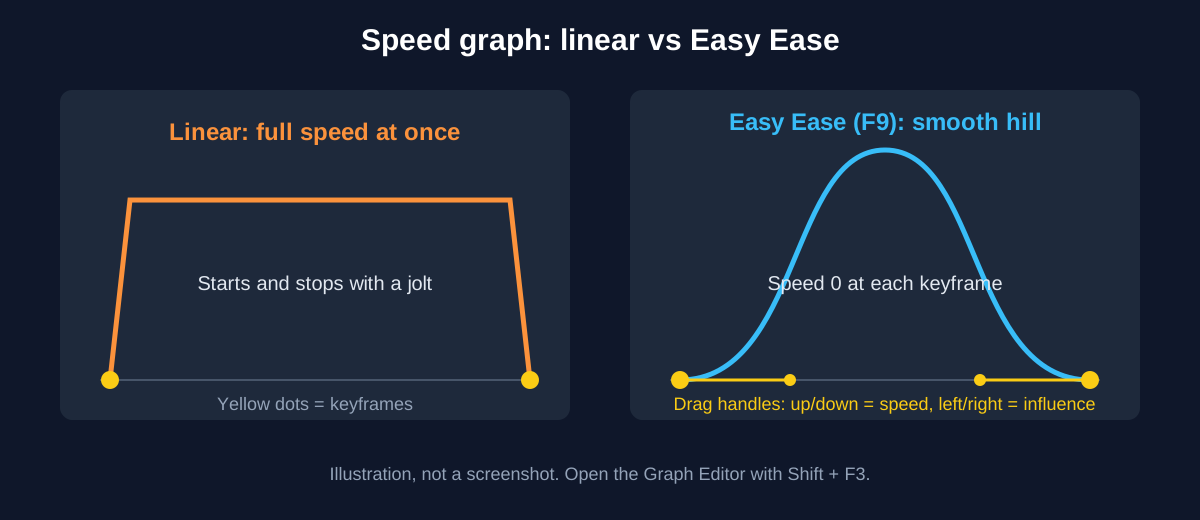
When you set keyframes, After Effects fills in the frames between them. The Graph Editor shows that in-between motion as a curve you can shape[1]. Adobe's help page lists what changes the speed: the time between keyframes, the difference in values and the interpolation type.
- Speed graph: height shows speed. A flat line is constant speed; a rise means speeding up.
- Value graph: shows the property's actual value over time. X values are red, Y values green and Z values blue[2].
How to Open the Graph Editor and Choose a Graph
- 1Show the property
Select the layer and press P for Position, S for Scale or R for Rotation, then select the keyframes.
- 2Open the Graph Editor
Click the Graph Editor button in the Timeline or press Shift + F3 (the same on Windows and Mac)[3].
- 3Pick the graph type
Open the Choose graph type and options menu at the bottom and select Edit Speed Graph or Edit Value Graph.
- 4Keep it in view
Turn on Auto-zoom graph height at the bottom so all values stay visible as you edit.
Easy Ease: The First Thing to Learn
Real objects do not start and stop at full speed. Easy Ease slows motion into and out of a keyframe. Adobe's help page says that after Easy Ease each keyframe has a speed of 0 with an influence of 33.33% on either side[1].
| Action | Windows | Mac |
|---|---|---|
| Easy Ease | F9 | F9 |
| Easy Ease In | Shift + F9 | Shift + F9 |
| Easy Ease Out | Ctrl + Shift + F9 | Command + Shift + F9 |
| Set keyframe velocity | Ctrl + Shift + K | Command + Shift + K |
| Graph Editor on or off | Shift + F3 | Shift + F3 |
You can also use the Easy Ease buttons at the bottom of the Graph Editor or Animation > Keyframe Assistant. On a Mac, function keys may clash with system shortcuts; see our After Effects shortcuts list for the fix.
Shaping the Curve: Speed and Influence
- Drag a handle up or down in the speed graph to speed up or slow down the motion entering or leaving a keyframe[1].
- Drag a handle left or right to change its influence, meaning how far the effect reaches towards the next keyframe.
- Alt-drag (Windows) or Option-drag (Mac) a handle to split the incoming and outgoing handles. Alt-drag or Option-drag it back to join them.
- Type exact numbers with Animation > Keyframe Velocity when you need the same ease on many layers.
For a gentle stop and start, drag the keyframe down near the bottom of the speed graph and pull its handles away from the centre; the graph forms a smooth U. For a sharp peak, like a bouncing ball, drag the keyframe up near the top and pull the handles in close. Adobe describes both shapes on its speed help page[1].
Graph Editor Handles Not Showing? Check These
- 1Select the keyframe
Handles appear on selected keyframes. Click the keyframe with the Selection tool.
- 2Check the interpolation
Linear keyframes make sharp corners. Press F9, or right-click the keyframe, choose Keyframe Interpolation and pick Bezier[2].
- 3Check the graph type
You may be looking at the speed graph when you expected the value graph, or the other way round. Switch it in the graph type menu.
- 4Check the zoom
Turn on Auto-zoom graph height; handles can sit outside the visible area of the graph.
- 5Use the buttons
The Hold, Linear and Auto Bezier buttons at the bottom of the Graph Editor change selected keyframes in one click[2].
Worked Example: A Smooth Logo Slide-In
Say you are animating a cafe logo that slides in from the left and stops in the centre (a hypothetical exercise):
- Set two Position keyframes 20 frames apart: off-screen left, then centre.
- Play it. The logo moves at one speed and stops hard.
- Select the second keyframe and press Shift + F9 (Easy Ease In).
- Open the speed graph and drag the left handle of the last keyframe further left. The logo now rushes in and settles softly.
- Add a small Scale bounce with two more keyframes and ease them too.
Try the same on the logo you build in our logo animation in After Effects guide, or on the text pieces from motion graphics for Reels.
Why Studios Care About the Graph Editor
Clients rarely say "fix the easing". They say it looks cheap, robotic or too fast. Motion designers fix that in the Graph Editor. Being able to explain a speed curve in a test task shows you understand animation, not only presets.
Expressions build on this too: a loop or bounce expression still needs good keyframes underneath. See After Effects expressions for beginners.
Three Portfolio Projects to Practise
- Bouncing ball: one ball, five bounces, each lower than the last, shaped in the speed graph.
- UI slide: three app screens sliding in with eased motion, as used in product promos.
- Lower third: a name and title that animate in, hold and leave, all with matching easing.
AI and Agentic AI With After Effects Today
Adobe announced an AI Assistant for After Effects in private beta in June 2026[4]. Designers also ask ChatGPT, Claude or Gemini to explain a setting or draft an expression.
What the human still decides: how the motion feels. AI can set keyframes, but judging whether a move looks natural is done by eye, frame by frame. CABA's courses now teach AI and agentic AI workflows inside the curriculum, with the designer checking every move.
Why 1-to-1 Training Helps With the Graph Editor
The Graph Editor is easier to learn when someone watches you drag the handles and tells you why the motion still feels off. In our motion graphics course in Delhi, trainers review your curves on your own projects, from logo stings to full brand videos.
The course comes with a 100% Job Guarantee; read the job guarantee terms first. See the full syllabus on the motion graphics course page.
Frequently Asked Questions
How do I open the graph editor in After Effects?
Select the animated property's keyframes and click the Graph Editor button in the Timeline, or press Shift + F3 to switch between the Graph Editor and layer bar mode.
What is the difference between the speed graph and the value graph?
The speed graph shows how fast a property changes. The value graph shows the property's value over time, with X in red, Y in green and Z in blue.
Why are graph editor handles not showing in After Effects?
Usually the keyframe is not selected or it uses Linear interpolation. Select it and press F9 or set it to Bezier. Then check you are on the right graph type.
What does Easy Ease do in After Effects?
It sets each selected keyframe to a speed of 0 with 33.33% influence on either side, so motion slows into and out of the keyframe.
What is the shortcut for Easy Ease?
F9 for Easy Ease, Shift + F9 for Easy Ease In and Ctrl + Shift + F9 (Command + Shift + F9 on Mac) for Easy Ease Out.
References
- Speed: control speed between keyframes (updated 4 November 2024)- Adobe Help Center
- Keyframe interpolation (updated 5 May 2026)- Adobe Help Center
- Keyboard shortcuts in After Effects (updated 5 May 2026)- Adobe Help Center
- Adobe Unveils Major Expansion of Creative Agent Across Firefly and Creative Cloud Apps (18 June 2026)- Adobe Newsroom