What Are Shape Layers in After Effects?
A shape layer is a layer made of vector paths with a fill and a stroke. Because it is vector, it stays sharp when you scale it up for a 4K screen or a big LED wall. That is why almost every icon, line, chart and logo animation you see in a Reel or an explainer starts as a shape layer.
Adobe's help explains the key rule: draw in the Composition panel with the Shape or Pen tool when no layer is selected and you get a new shape layer. Draw when an image or video layer is selected and you get a mask on that layer instead[1]. New users mix this up all the time.
How to Create a Shape Layer (Step by Step)
- 1Deselect all layers
Press F2. This makes sure your drawing becomes a new shape layer, not a mask.
- 2Pick a shape tool
Press Q to choose and cycle through Rectangle, Rounded Rectangle, Ellipse, Polygon and Star. Press G for the Pen tool.
- 3Drag in the Composition panel
Hold Shift for a perfect square or circle. While dragging a star or polygon, the Up and Down arrows change the number of points.
- 4Set fill and stroke
Use the Fill and Stroke controls in the Tools panel. They apply to the selected shape.
- 5Name it
Press Enter on the layer name and give it a clear name such as Ring_Blue. Studios care about this.
The Add Menu: Shape Tools That Save Hours
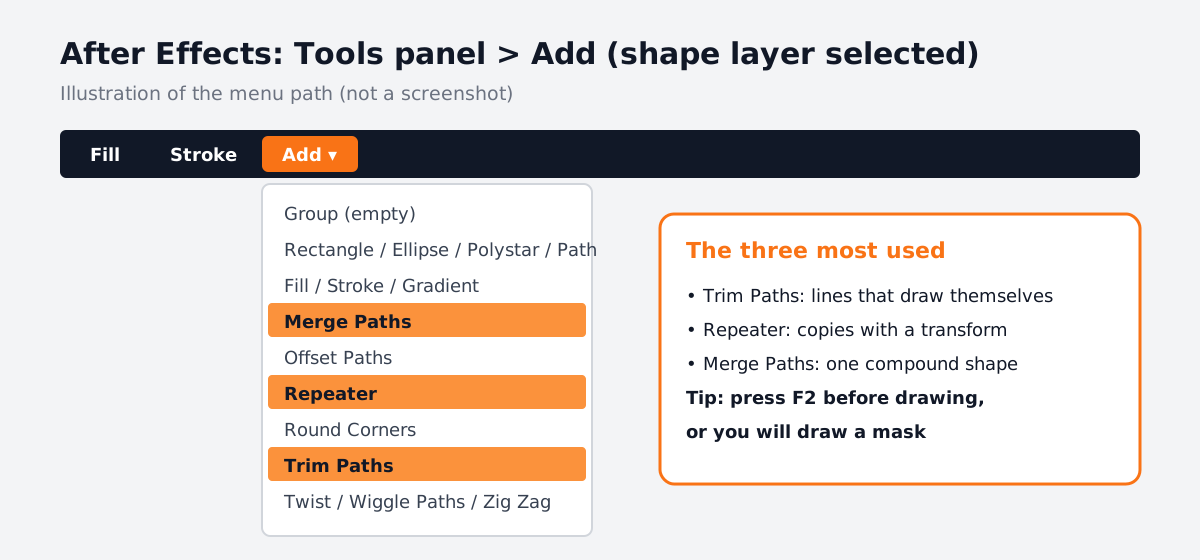
Once a shape exists, open the Add menu in the Tools panel or the Timeline panel. These are the operations professionals use most[2]:
| Operation | What it does | Typical use |
|---|---|---|
| Trim Paths | Animate Start, End and Offset to draw a line on | Lines that draw themselves, loading rings, signatures |
| Repeater | Makes copies of a shape with a transform for each | Patterns, burst effects, clock ticks |
| Merge Paths | Combines paths into one compound path | Cut-out icons, ring shapes |
| Offset Paths | Expands or shrinks a shape from its path | Outlines, glow-style borders |
| Round Corners | Rounds sharp corners | Friendly UI buttons and cards |
| Wiggle Paths, Zig Zag, Twist | Distort the path | Hand-made or energetic looks |
Convert Illustrator Art to Shape Layers
Most logos arrive as Illustrator files. Import the file, put it in a composition, select the layer and choose Layer > Create > Create Shapes from Vector Layer. A matching shape layer appears above the original. The original is muted. Adobe says gradient fills, gradient strokes and transparency now carry over when Illustrator layers are converted[1].
Now each part of the logo is a shape group you can animate on its own. This is the first step of every logo reveal; see logo animation in After Effects for the full project.
Why Studios Expect You to Know Shape Layers
- Speed. One shape with a Repeater replaces 20 copied layers. Edits take seconds.
- Templates. Agencies reuse shape-based lower thirds and icons across many videos.
- Clean handover. Named groups let another animator change a colour without breaking anything.
- Light files. Vector shapes keep projects small and fast to preview.
Pair this with the keys in our After Effects shortcuts guide and the timing control in After Effects graph editor.
3 Portfolio Projects With Shape Layers
- Animated icon set: five app-style icons that draw on with Trim Paths.
- Infographic counter: a bar chart and a pie that grow, with a number counter.
- Loading ring and burst: a ring that draws itself, then bursts into dots with a Repeater.
Worked example (loading ring): draw a circle with the Ellipse tool, set Fill to none and Stroke to 12 px. Add Trim Paths. Keyframe End from 0% to 100% over 1 second. For the burst, draw a small dot above the ring on a new shape layer, add a Repeater with 8 copies, set the Repeater's Position to 0 and its Rotation to 45 degrees so the copies spin around the layer's centre, then scale them up after the ring finishes. Ease the keyframes in the Graph Editor. In 15 minutes you have a clean loop for a Reel or a website. For more ideas, see motion graphics ideas.
Using Shape Layers With AI (and a Human Check)
Motion designers now use AI image tools such as Adobe Firefly to explore icon and illustration ideas, then rebuild the chosen idea as clean shapes in After Effects. Some ask AI chat tools to write a simple expression, such as a loop, then paste it into a shape property. Agentic tools that build whole animations exist too, but the output usually needs rebuilding for client use.
What the human still decides: whether the motion feels right, whether timing matches the music and whether the file is clean enough to hand over. CABA's courses now teach AI and agentic AI workflows inside the curriculum, always with this check.
Why 1-to-1 Training Helps With Shape Layers
Shape layers look simple until a group order breaks your animation, or a Repeater copies the wrong thing. A trainer sitting with you spots these in seconds and shows you why, which saves days of trial and error. That is why our motion graphics course in Delhi teaches shape layers through real Reels, logos and explainers.
Start with After Effects for beginners if you are new, then see the full plan on the motion graphics course page.
Frequently Asked Questions
How do you make a shape layer in After Effects?
Press F2 to deselect all layers, pick the Shape tool (Q) or Pen tool (G) and draw in the Composition panel. A new shape layer is created.
Why does After Effects make a mask instead of a shape?
Because a layer was selected when you drew. Press F2 to deselect all layers and draw again.
How do I convert an Illustrator file into shape layers?
Select the Illustrator layer in your composition and choose Layer > Create > Create Shapes from Vector Layer.
What does Trim Paths do in After Effects?
It lets you animate the Start, End and Offset of a path so a line or outline draws on or off.
Are shape layers enough for motion graphics jobs?
They are the base. Employers also want text animation, timing with the Graph Editor and clean project files.