
Why These Illustrator Habits Matter in the Industry
In a design studio or print shop, your file goes to other people: a senior designer, a printer, a web developer. If it has stray points, loose guides, overlapping duplicate shapes or text that breaks on another computer, someone has to fix it. Studios notice that in the first week.
The tips below are small, but together they make your work faster and your files clean. Every shortcut here was checked on Adobe's Illustrator keyboard shortcuts page on 25 November 2026[1]. Windows keys are shown first, Mac keys in brackets.
10 Illustrator Tips for Beginners
- Check in Outline view: Ctrl + Y (Command + Y). It toggles between Outline and GPU Preview, showing every path as a thin line. Stray points, hidden shapes and duplicate objects become obvious.
- Turn on Smart Guides: Ctrl + U (Command + U). They show alignment and spacing as you move objects, so you stop eyeballing.
- Build shapes with Shape Builder: Shift + M. Draw overlapping circles and rectangles, then drag across the parts to merge them; hold Alt (Option) to remove parts[2]. This is how many logos are built.
- Paste in Place: Ctrl + Shift + V (Command + Shift + V). It pastes on the active artboard in the same position, which keeps layouts aligned across artboards.
- Hide what you are not editing: Ctrl + Alt + Shift + 3 (Command + Option + Shift + 3). This hides unselected artwork so you can work on one part of a busy design.
- Lock your guides: Alt + Ctrl + ; (Option + Command + ;). Locked guides stop you from moving them by mistake; Ctrl + ; shows or hides them.
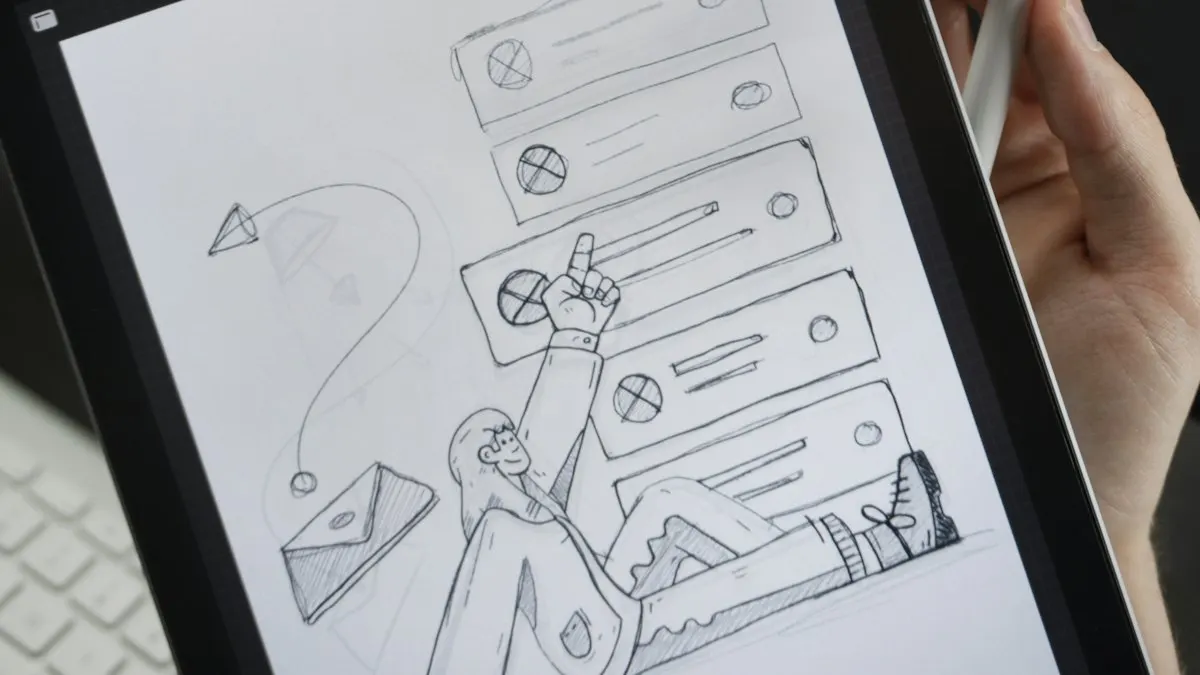
- Trace sketches, then clean them. Image Trace turns a scanned drawing into vector paths; adjust the panel options and then simplify the result by hand[3].
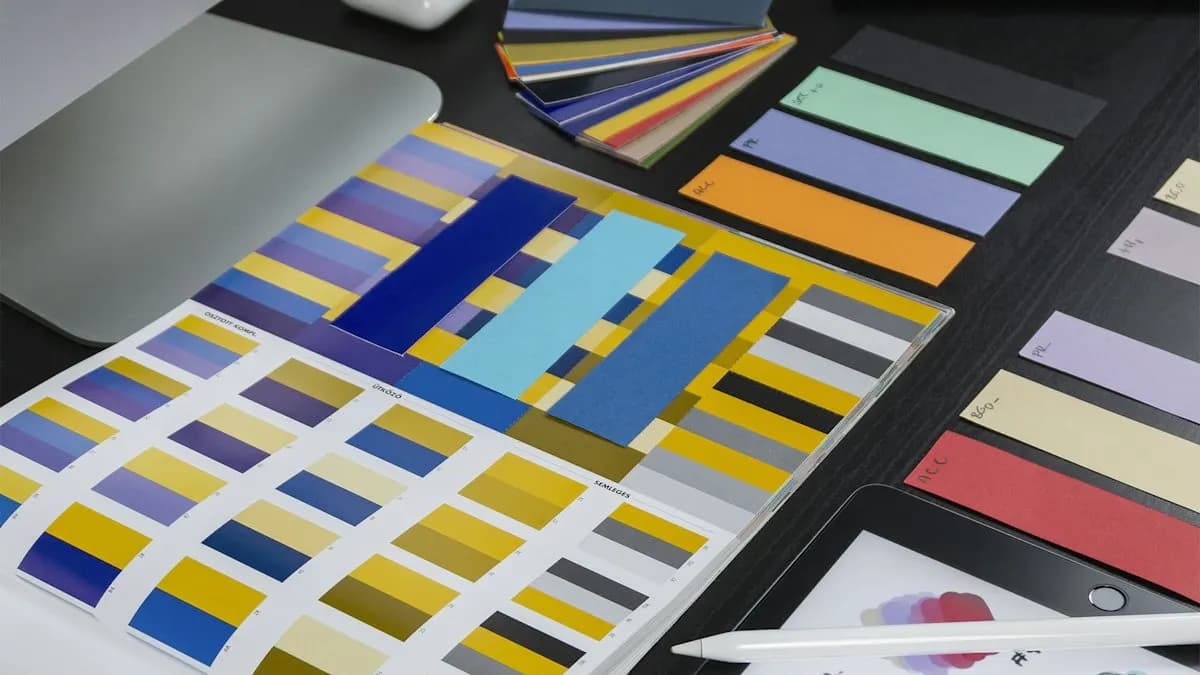
- Try colour schemes with Generative Recolor. Select the artwork, then Edit > Edit Colors > Generative Recolor (also under Object > Generative), type a theme and add up to five guide colours. Refine your pick with Edit > Edit Colors > Recolor Artwork[4].
- Use one artboard per deliverable. A logo, its icon and a social profile picture on separate artboards export in one go.
- Export with Export As and Use Artboards. This saves each artboard as its own PNG or JPG at the size you set[5].
3 Portfolio Projects to Practise These Illustrator Tips
- A logo for a local shop: build it with Shape Builder, check it in Outline view and export three sizes from artboards.
- An icon set of six icons: same stroke weight and grid, aligned with Smart Guides.
- A festive offer poster: one main illustration, a price badge and two colour versions made with Generative Recolor and finished by you.
Worked example: say a chai stall wants a logo. Sketch a cup with steam on paper and scan it. Run Image Trace, then rebuild the cup cleanly with circles and rectangles in Shape Builder. Add the name in a bold font and convert it to outlines. Press Ctrl + Y to catch leftovers, then export a square profile picture and a wide signboard version from two artboards. For more logo steps, read logo design in Illustrator.
AI and Agentic AI in Illustrator Work
Illustrator now has generative AI inside it. Generative Recolor suggests colour schemes. Text to Vector Graphic can generate scenes, subjects and icons as editable vectors from a prompt[6]. Studios also use AI assistants to draft ideas and agents to resize or batch-export assets.
What the designer still decides: whether the shape is original, whether the colours match the brand, whether the paths are clean enough to print and whether text is correct. AI drafts are a starting point. CABA's courses now teach AI and agentic AI workflows inside the curriculum, so students learn where AI saves time and where their own eye matters.
Why 1-to-1 Training Helps With Illustrator
Illustrator problems are usually hidden in the file: a path that is not closed, a shape stacked twice, a stroke that should be expanded. In a big class nobody opens your file. In one-to-one training the trainer sits with your actual artwork and shows you the fix. That habit stays.
Our graphic design course in Delhi teaches Illustrator, Photoshop, InDesign, Canva and AI design tools through real briefs, with your files reviewed one by one. It carries a 100% Job Guarantee; read the job guarantee page for details. See the full plan on the graphic design course page.
Want all the keys in one place? Read our Illustrator shortcut keys list. Deciding between tools? See CorelDRAW vs Illustrator.
Frequently Asked Questions
What are the best Illustrator tips for beginners?
Use Outline view (Ctrl + Y) to find stray points, keep Smart Guides on (Ctrl + U), build shapes with Shape Builder (Shift + M), use Paste in Place and export with Export As using artboards.
How do I see hidden or stray points in Illustrator?
Press Ctrl + Y (Command + Y on Mac) to switch to Outline view. Every path shows as a thin line, so leftovers are easy to spot and delete.
How do I change all colours in Illustrator quickly?
Select the artwork and use Edit > Edit Colors > Recolor Artwork, or try Generative Recolor from the same menu to get colour schemes from a text prompt.
Is Illustrator hard to learn for beginners?
The basics take a few weeks of daily practice. The Pen tool and clean paths take longest, which is where a trainer checking your files helps.
Is Illustrator needed for a graphic design job?
Yes, most Delhi graphic design job posts ask for Illustrator along with Photoshop. Many print jobs also accept CorelDRAW.
References
- Illustrator keyboard shortcuts (last updated 13 November 2026, checked 25 November 2026)- Adobe Help Center
- Create shapes using the Shape Builder tool- Adobe Help Center
- Image Trace panel options in Illustrator- Adobe Help Center
- Recolor artwork with text prompts in Adobe Illustrator (checked 25 November 2026)- Adobe Help Center
- Export artwork- Adobe Help Center
- Generate scenes, subjects and icons in Adobe Illustrator- Adobe Help Center